Before you start
- A HubSpot account on any edition and a user allowed to install apps (super admin).
- A Holded account with API access (Settings › Developers).
- To see invoices and orders as their own HubSpot objects, your account must have those objects and you must accept their optional permissions. Without them, the app stores that data on the deal.
- To use the workflow actions you need HubSpot Professional or Enterprise (workflows only exist in those editions) and the automation module.
The app's interface is available in Spanish and English: each user sees it in their HubSpot language (Spanish if their HubSpot is in Spanish, English otherwise). The screenshots on this page show the English version.
Install the app from the Marketplace
- Open Holded by Vexco in the HubSpot Marketplace and click Install (or use the direct install link).
- Choose the HubSpot account you want to install it in.
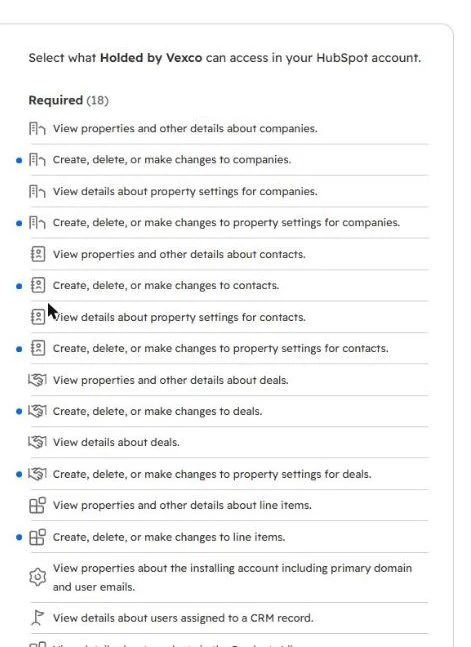
- Review the permissions and click Connect app. The invoice, order and automation (
automation) permissions are optional; the last one is only needed for the workflow actions. - HubSpot takes you to the app settings and the wizard starts. To come back later: Marketplace icon › Connected apps › Holded by Vexco.
Step 1 of 7: connect Holded
You connect the app to your Holded company with an API key: a long key generated in Holded. The app uses it to read and write in Holded on your behalf, and only within the permissions the key has. If you have several companies in Holded, you can connect them all; the first one is used by default.
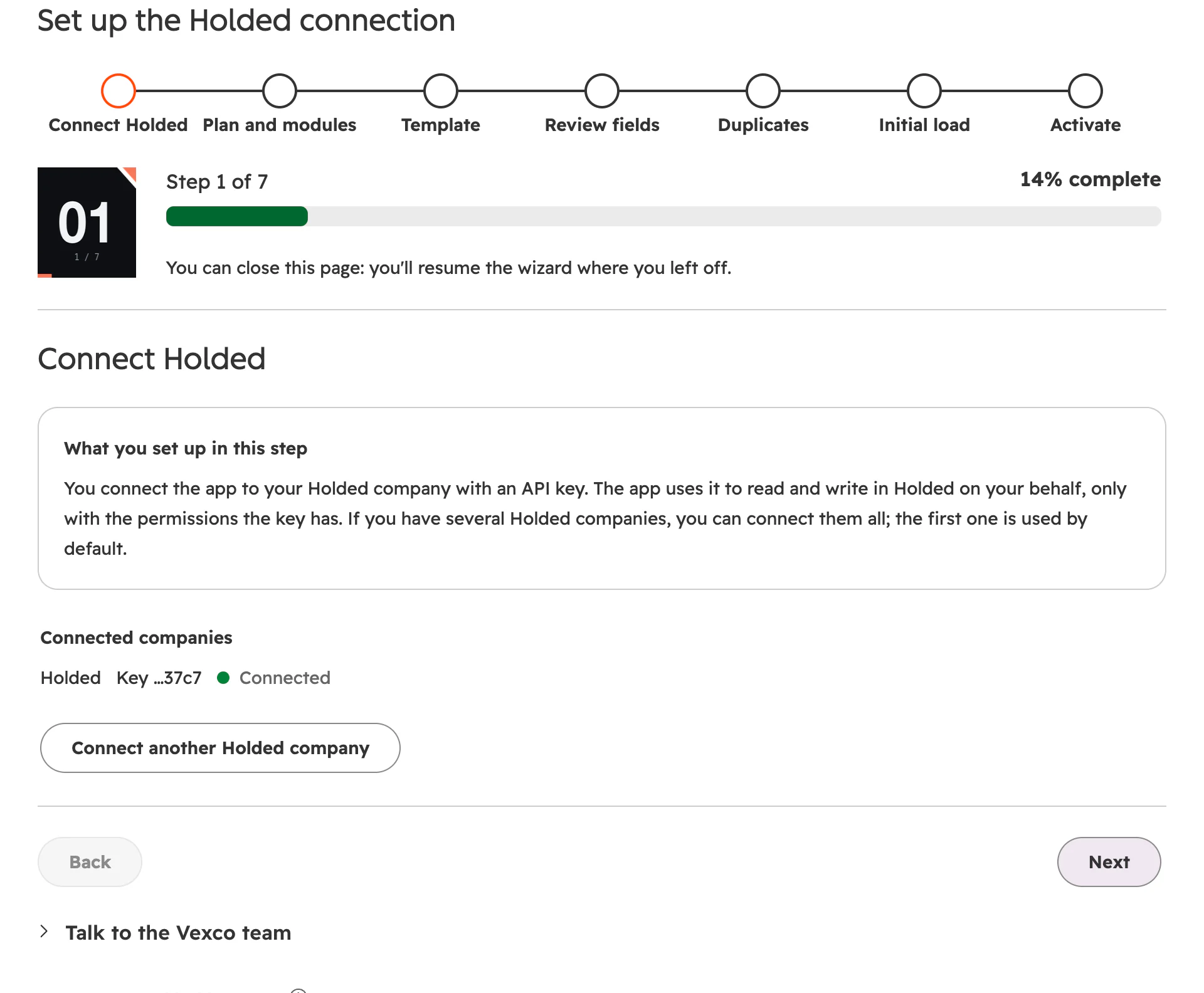
- The 7 steps. You can close the page: when you come back, the wizard carries on where you left off.
- Every step opens with the “What you set up in this step” box.
- The connected Holded companies, with the last characters of each key and its status.
- Connect another Holded company opens the form to add one more.
- Talk to the Vexco team: the contact form, available throughout the wizard.
- In Holded, go to Settings › Developers › New API key, grant permissions for the modules you will use and copy the key. Holded only shows it once.
- In the wizard, paste it into Holded API key, give the company a name and click Validate and connect. The app tests the key instantly and tells you which modules it allows.
- You need at least one company with a valid key to continue. If Holded rejects the key, the step tells you.
Step 2 of 7: plan and modules
You choose which parts of the integration you will use (the modules: catalog, sales, invoicing, CRM…) and how many Holded companies you connect. Anything outside the plan doesn't sync and its flows stay off. You start with a 14-day free trial, no card needed, and you can change plan whenever you like.
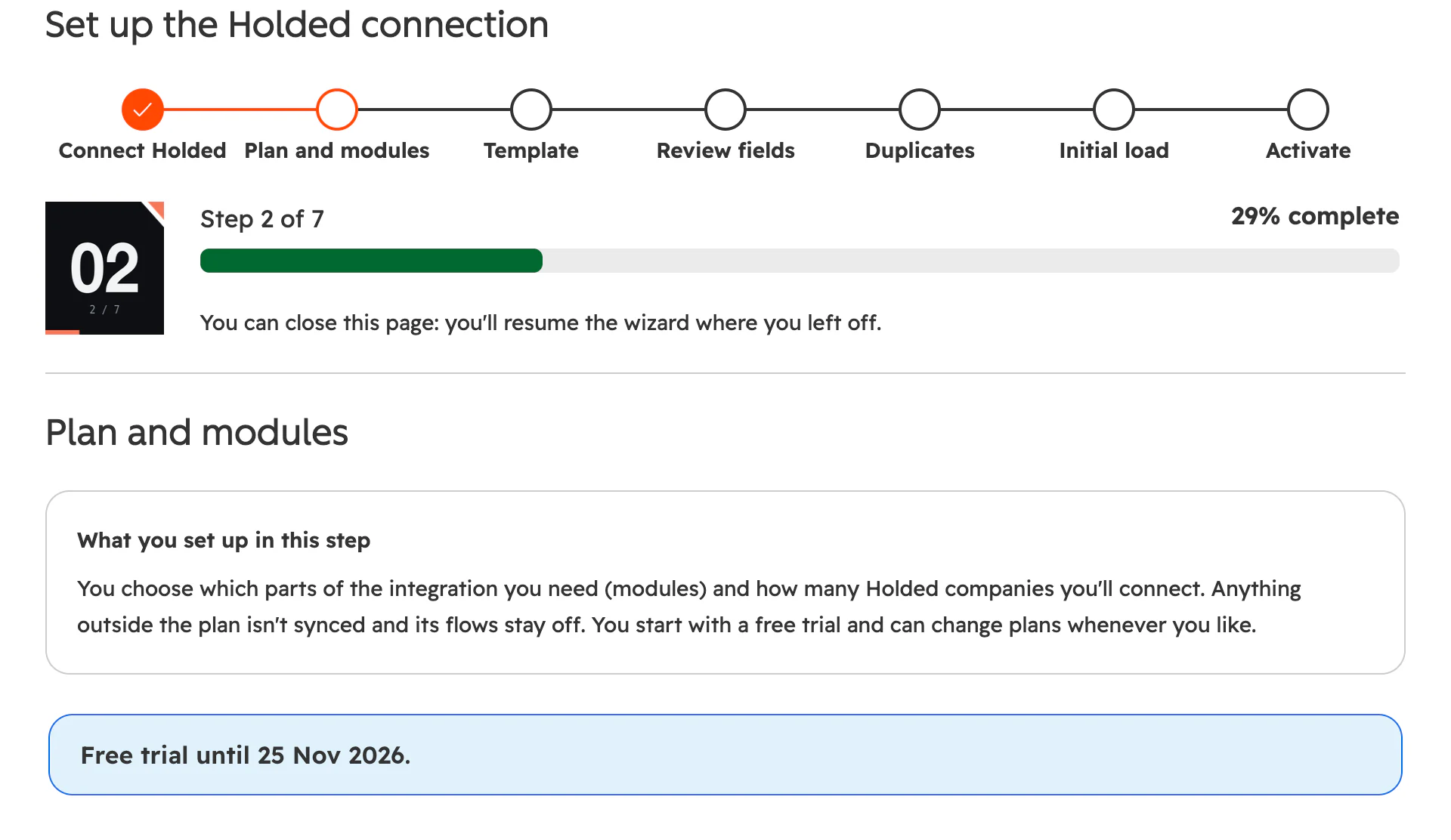
Each bundle costs less than its modules bought separately, and you can also build your own plan, module by module; as you choose, the app tells you if a bundle works out cheaper. Prices are on the pricing page and at the end of this guide.
Step 3 of 7: template
You pick a starting point: which flows are switched on. A flow is a rule that links one type of Holded data to one type of HubSpot data (for example, Holded customers to HubSpot companies) and says what is copied and in which direction. You can change each flow separately afterwards.
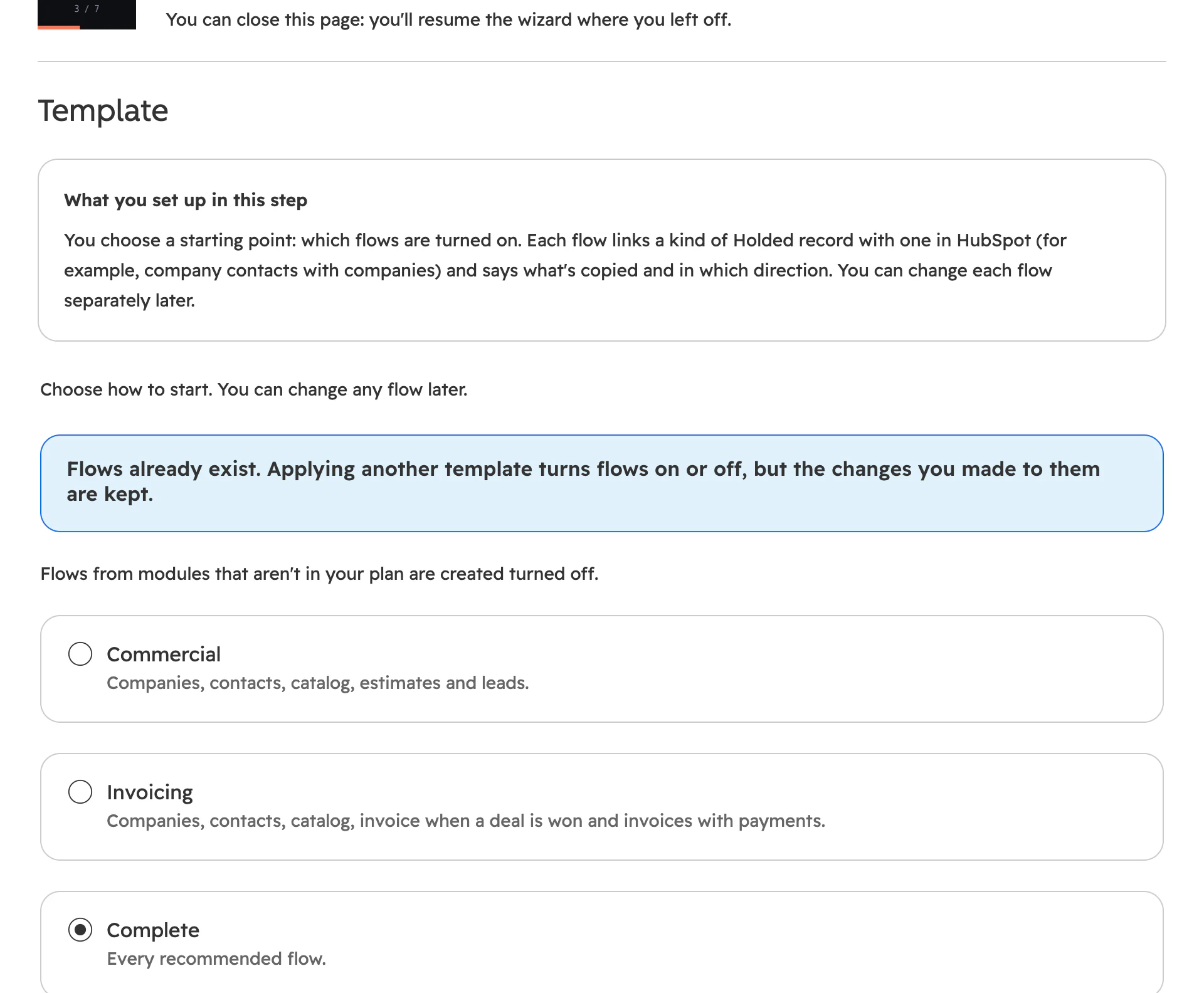
- Applying another template switches flows on or off, but never deletes the changes you have made to them.
- Flows from modules that aren't in your plan are created switched off.
- Commercial: companies, contacts, catalog, estimates from the deal with their status coming back, leads and events. Invoicing: companies, contacts, catalog, invoice when the deal is won, and invoices with payments. Complete: all the recommended flows. Further down is Custom: companies and contacts only.
In this step you can also tick the optional Holded documents → deals flow, which turns estimates, proformas, invoices and waybills made in Holded into HubSpot deals. It starts switched off and no template turns it on (more on it below).
Step 4 of 7: review fields
You review which fields each flow copies (name, tax ID, phone, email…), in which direction and how each value is calculated. The app checks that every field fits the data type at the destination: for example, that nobody tries to store a date in a number field. The recommended setup comes preconfigured and error-free.
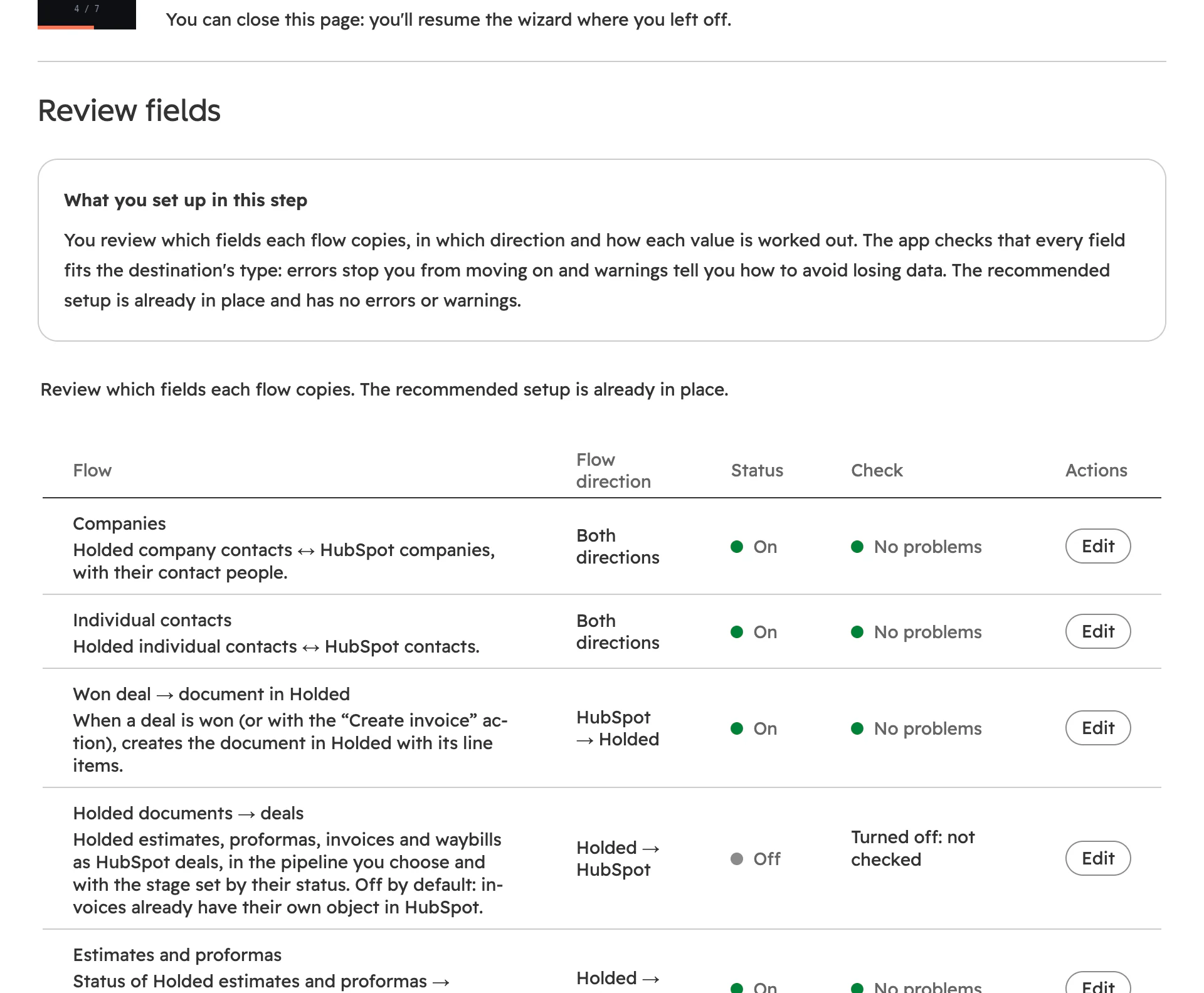
- The direction of each flow: both ways, HubSpot → Holded or Holded → HubSpot. Next to it, whether it is on.
- The result of the check on its fields.
- Edit opens the flow's fields.
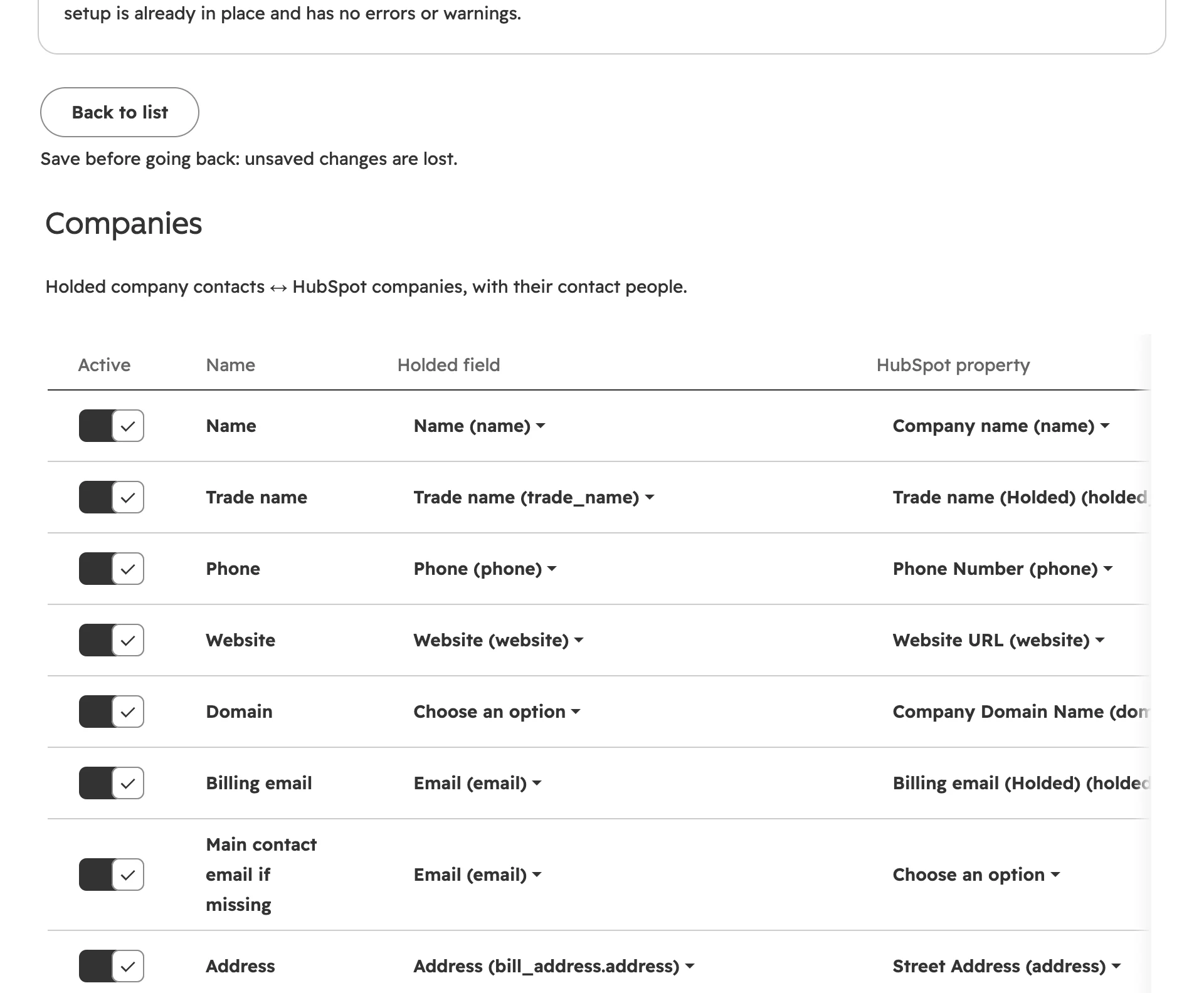
- Back to list of flows.
- A switch on every field: when it is off, that field isn't copied.
- The Holded field…
- …and the matching HubSpot property. Further right, that field's direction and which side wins in a conflict.
| Result | What it means | What happens |
|---|---|---|
| No problems | The field fits its destination. | Nothing. |
| Warning | It can be converted, but data may be lost (text going into a number field). The message suggests a fix, such as adding the “Number” transformation. | You can save and carry on. |
| Error | It can't sync: the destination is missing or read-only, the types don't match, the value doesn't exist in the destination dropdown, or two fields write to the same property. | The flow can't be saved and Next stays blocked while an active flow has errors. |
Step 5 of 7: duplicates
The app looks for customers, contacts and products that already exist in both systems (by tax ID, email or ID) so it can link them instead of duplicating them. It tells you how many will be linked, how many will be created on each side and which ones need a person to decide. It only reads: nothing is written.
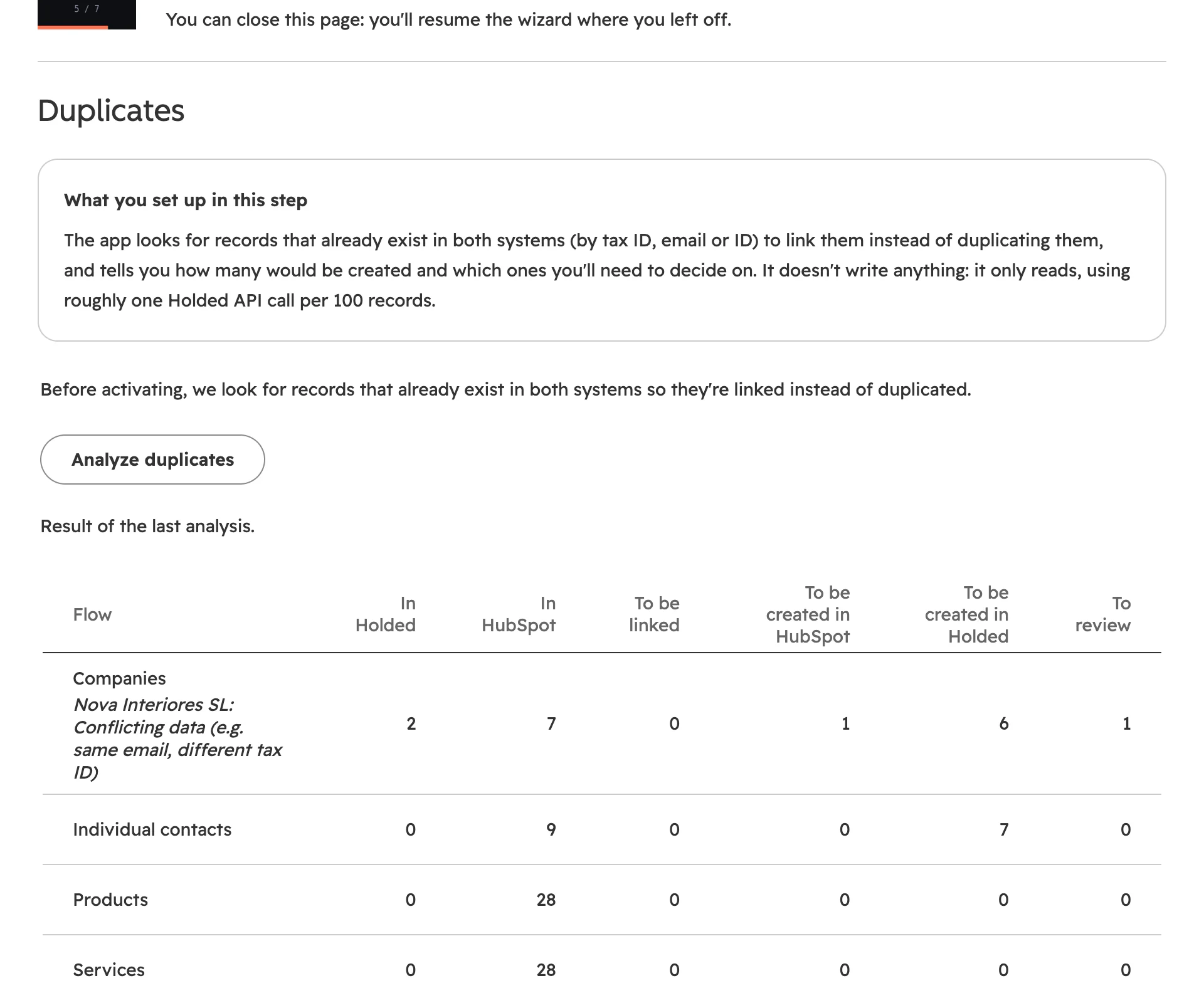
- Analyze duplicates compares both systems. It uses roughly one Holded API call per 100 records.
- For each flow: how many records exist in Holded and in HubSpot, how many will be linked and how many will be created on each side.
- To review: doubtful cases (same email, different tax ID). The app won't decide these on its own: they go to the review inbox.
If you leave the step and come back, you see the last analysis. In large accounts you can carry on without waiting: during the load the app matches records the same way and sends doubtful ones to the review inbox. More detail in how to avoid duplicates between Holded and HubSpot.
Step 6 of 7: initial load
You decide which existing data is brought in on day one: from which flows, in which way and, for documents (invoices, estimates…), from which dates. You can run a dry run first that writes nothing. Whatever changes after activation always syncs, with or without an initial load.
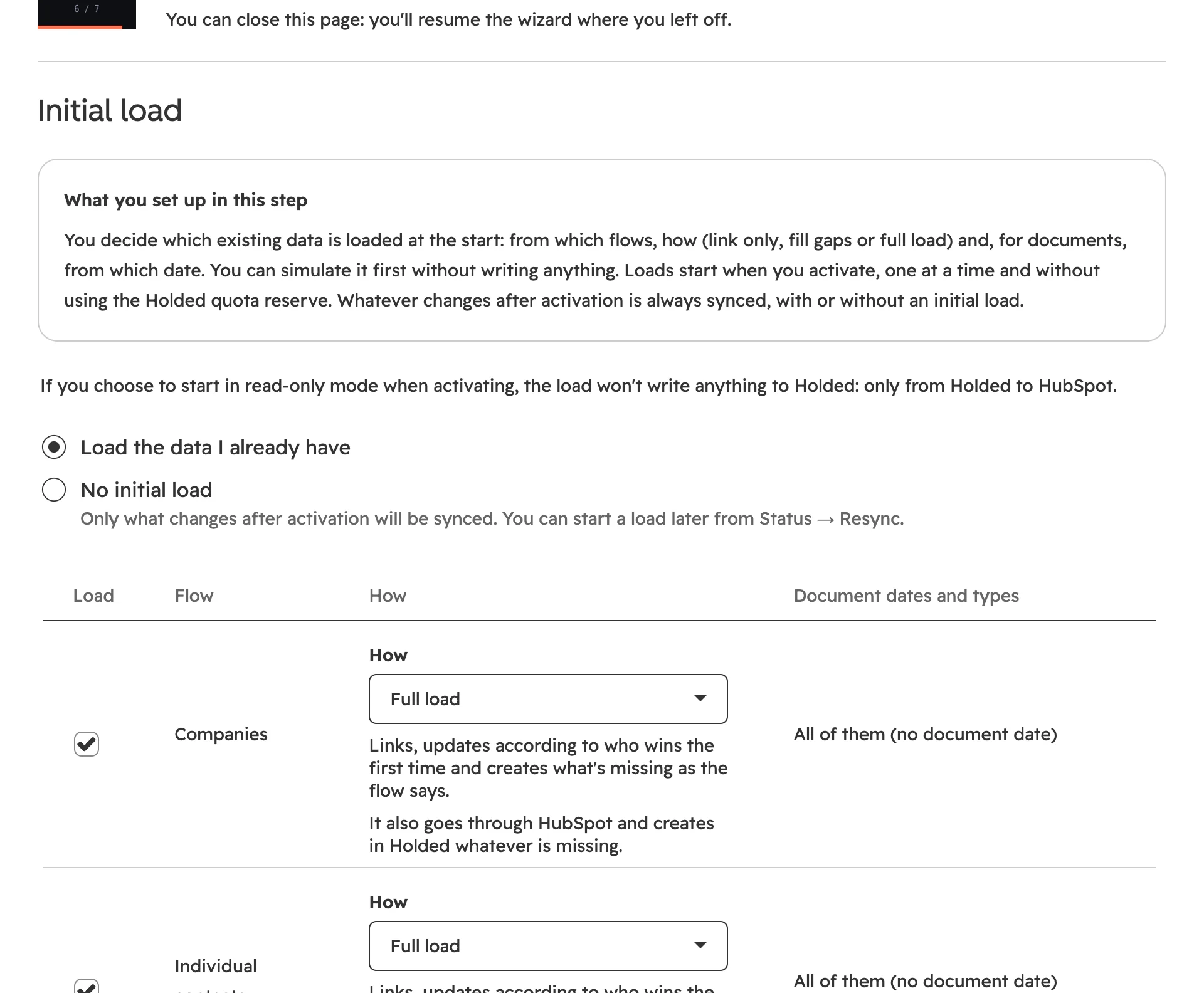
- Load the data I already have or No initial load. Without a load, only what changes after activation is synced; you can start one later from Status › Resync.
- Which flows are loaded.
- How each flow is loaded (table below).
- For documents: from and to which date, and which types. Contacts and products have no date: they are all loaded.
| Mode | What it does |
|---|---|
| Link only | Links what already exists on both sides. Creates and changes nothing. |
| Link and fill gaps | Links records and fills in empty fields on each side. Overwrites nothing and creates no records. |
| Full load | Links, updates according to which side rules on first link, and creates what is missing. It is the only option for flows that only run from HubSpot to Holded. |
- Start with a sample: loads only the first 5, 10, 25 or 50 records of each flow and pauses so you can check them in HubSpot before continuing.
- Simulate without writing: runs up to 25 records per flow through the same process and tells you how many would be created, linked, updated or sent to review.
- The screen estimates the Holded API calls against your monthly quota. A load never touches the reserve kept for day-to-day syncing (20 % by default).
- Loads start when you activate, one at a time: customers first, then the catalog, then documents, so every document finds its customer already linked.
- Some flows have no initial load: “Won deal → document in Holded” (it would create numbered invoices) and events, which the app already checks on its own.
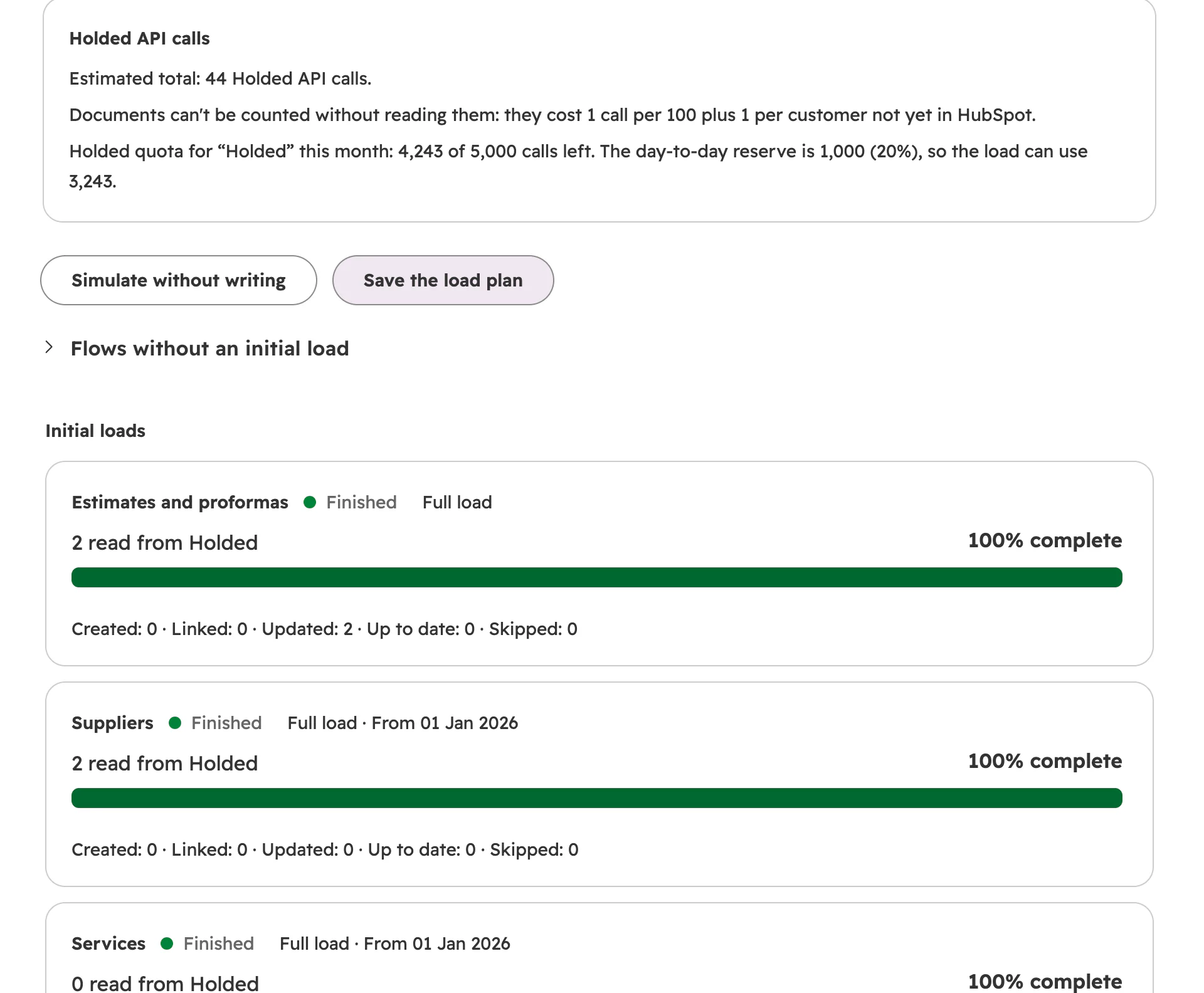
- The Holded API calls the load will use, against this month's quota.
- Simulate without writing: writes nothing anywhere.
- Save the load plan. Loads start when you activate.
- Flows without an initial load: which ones and why.
- Each load with its status, progress and counts: created, linked, updated, already up to date and skipped.
While a load is running you can pause, resume, cancel it (whatever has loaded stays) and retry the failed ones. If the Holded quota runs out, the load waits and resumes on its own once quota is available again.
Step 7 of 7: activate
Activating starts the sync: from that moment, changes in Holded and HubSpot are copied automatically according to the flows, and the planned initial loads begin. Before that, the step shows you a summary of exactly what will happen and warns you about anything still missing from the setup.
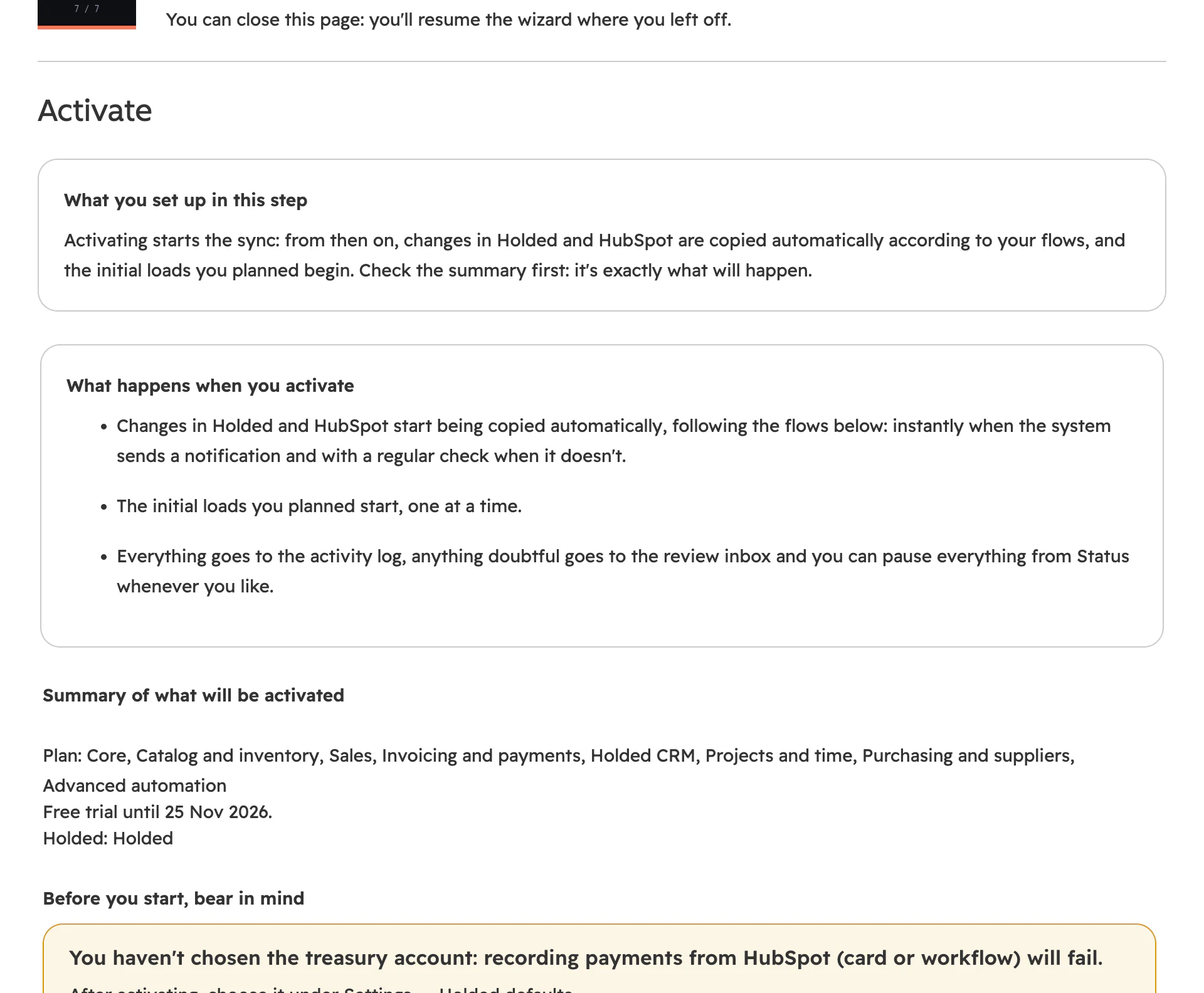
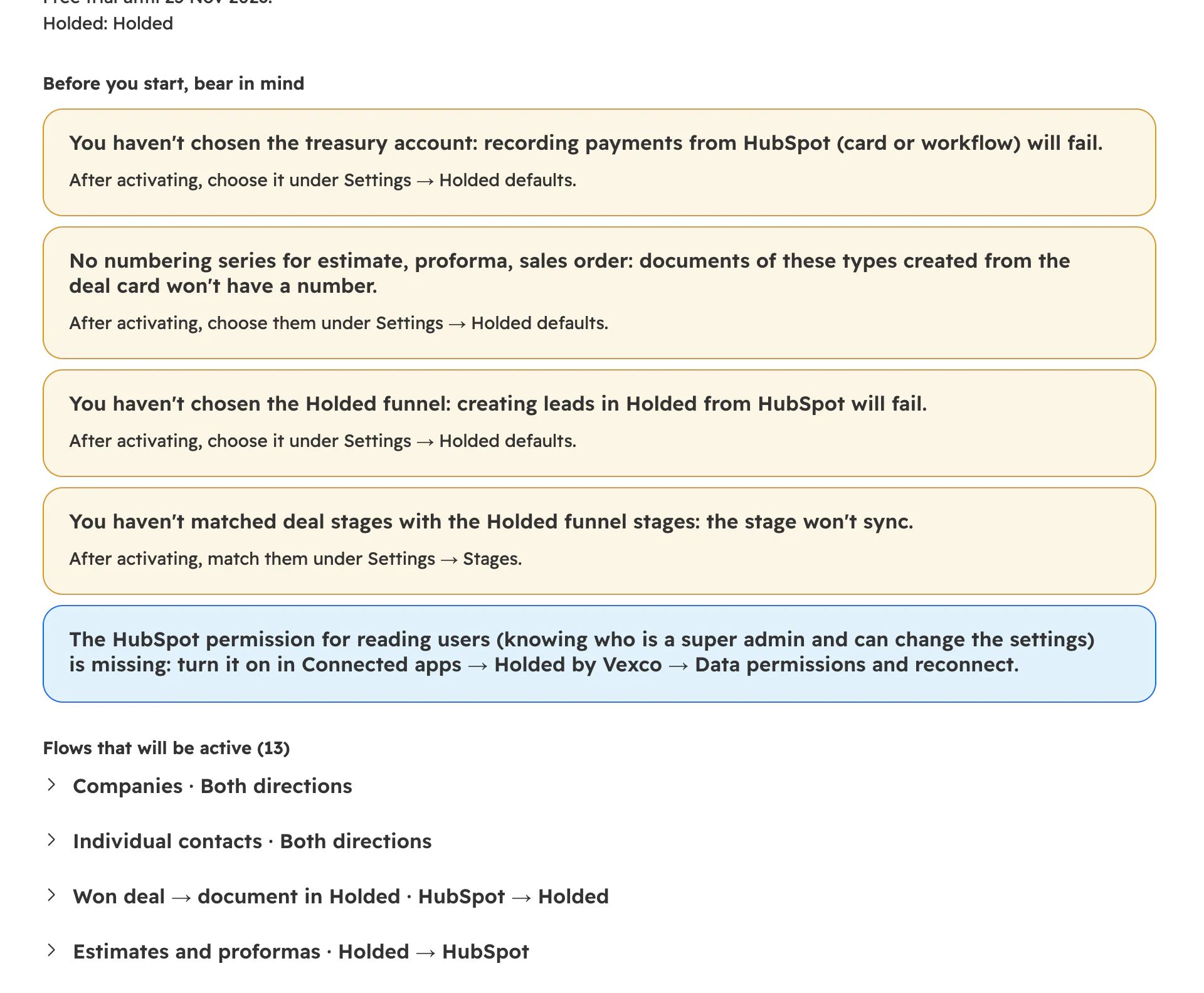
- Each warning says what will fail if it isn't fixed: without a treasury account, payments recorded from HubSpot; without numbering series, documents will have no number; without a funnel, Holded leads.
- …and where to fix it, usually in Settings › Holded defaults.
- The flows that will be switched on. Each one expands to show what triggers it, what it creates or updates, how many fields it copies in each direction, how it matches records and which side wins in a conflict.
Spend a few days in read-only mode: tick Start read-only (Holded → HubSpot only) before you click Activate sync. The app only copies from Holded to HubSpot and writes nothing to Holded, where your accounts live. Once the data checks out, click Status › Turn on both directions.
After the wizard: cards on your records
HubSpot doesn't show an app's cards until you add them to each record view. You only do it once per object:
- On a company or contact: Customize › sidebar “+” › Card library › “Apps” filter › Holded › Add.
- On products, the same with the Holded · Stock card.
- In the company and contact preview panel (the one that opens from a list), the Holded · Info card: outstanding, overdue and sync status without opening the record.
- On deals: create a “Holded” tab and add the Holded by Vexco card.
From won deal to paid invoice
- 01 · HubSpotDealThe rep adds the line items
- 02 · HubSpotStageIt reaches the chosen stage
- 03 · The appDraftThe app creates it in Holded
- 04 · HoldedIssuedIt gets its number; locked from then on
- 05 · HoldedSentBy email from Holded
- 06 · The appPaidBack on the deal and the company
Automatic. When a deal reaches one of the stages you pick in Settings › Documents (in any pipeline) or, if you prefer, any won stage, the app creates in Holded the document set in the settings (a draft invoice by default) with the deal's line items, the customer and the right numbering series. If you change nothing, the trigger is the won stage of HubSpot's default pipeline. It isn't issued or sent automatically unless the settings or a rule say so. If the deal has the Document type to create in Holded property filled in, that takes precedence.
Who gets billed. The deal's primary company or, if it has none, its contact. The deal's Bill to (Holded) property (Automatic, Company or Contact) changes that for a single deal, and a rule can do it for a whole pipeline. If the customer doesn't exist in Holded yet, it is created with the first document.
Manual. At any time, from the deal's Holded tab, from a workflow or with the deal's Holded action property: create an estimate, proforma, sales order, waybill or invoice; convert the last document into an invoice; issue it; send it by email or refresh it from Holded. Once done, the property clears itself, so it also works from a list view for many deals at once.
More detail and rule examples in how to create the Holded invoice from HubSpot.
Invoices and payments coming back from Holded
- When an invoice is issued in Holded, it appears in HubSpot as an invoice linked to the company and the deal, with number, total, PDF and payment status. Credit notes and sales receipts arrive the same way.
- Each payment recorded in Holded updates the paid and pending amounts on the deal, and the balance and overdue amount on the company.
- A payment can also be recorded from HubSpot (card or workflow): it goes to the treasury account set in the settings or in the matching rule.
Reps can see in HubSpot, without opening Holded, whether a customer owes money before they call or try to sell more.
Taxes, withholding and Verifactu
- The customer's tax regime. An EU business with a VAT number, a customer outside the EU or one in the Canary Islands, Ceuta or Melilla gets its own regime (intra-EU, export, IGIC…) even if the line item carries standard VAT; if they don't match, a warning is left in the log.
- Equivalence surcharge. Spain's recargo de equivalencia applies to retailers. Turn it on in Settings › Documents or with a rule for those customers and each VAT line gets its surcharge (21% → 5.2%, 10% → 1.4%, 4% → 0.5%). Tax labels with several rates, such as “IVA 21% + RE 5,2%”, are understood too.
- IRPF withholding. Spanish income tax withheld on professional invoices. You set the percentage and who it applies to: by default, Spanish companies and self-employed professionals (in Holded, an individual with their DNI or NIE). A private individual with no tax ID or a foreign customer isn't withheld unless you choose “All customers”, and stock product lines never are. When it's skipped, the log says so.
- Numbering. Before issuing, the app checks that there is no invoice already issued in the same series with a later date (Verifactu numbers by date order). If a response gets lost, the retry looks for the document before creating another, so no gaps are left; and a draft that already has a number can't be deleted from HubSpot.
- Issued is final. An issued document is never modified. To correct an invoice, a credit note is created, also from HubSpot.
Whatever reaches Holded has to be issuable as it is. The app doesn't replace your tax adviser: it applies the rules you configure and stops, explaining why, when something doesn't add up.
Holded documents as deals (optional)
If some of your sales start in Holded, the Holded documents → deals flow creates a HubSpot deal for each estimate, proforma, invoice or waybill made there: you choose which types, which pipeline and a status → stage table (for example, accepted estimate → “Closed won”). The deal carries the associated customer, line items, amount and document number, and its stage follows the status.
- Documents created from a HubSpot deal aren't duplicated: they already have their deal.
- It starts switched off: invoices already have their own object in HubSpot, and not everyone wants them filling the pipeline.
- Turn it on in step 3 of the wizard or in the Flows tab, with the Sales module.
Customers without duplicates: the review inbox
When a new customer arrives from one side, the app looks for it on the other: first whether the two were already linked, then by tax ID, then by email. If it finds one, it links them; if not, it creates the record. If it is unsure (same email with a different tax ID, several candidates), it does nothing and leaves the case in the review inbox.
The inbox lives on the app's page (Marketplace icon › Holded by Vexco › Review inbox). Each case explains what is going on and offers its own buttons: Merge, Create new or Ignore; for a data conflict, Keep Holded or Keep HubSpot; for an error, Retry.
Company, contact and product cards
| Card | What it shows | What you can do |
|---|---|---|
| Company and contact | Tax ID, trade name, outstanding, overdue, invoiced in the last 12 months, last invoice, payment terms and tags. A chart of invoiced vs paid (6, 12 or 24 months). Latest documents, with days overdue. | Open the Holded record (address, terms, masked IBAN, contact persons); see recurring invoices, purchases (suppliers) and files; create a document in one of its deals; sync now. |
| Product | Price, cost and margin (can be hidden), taxes, total, available and reserved stock, minimum stock warning, stock per warehouse, variants and recent sales. | Sync now. |
The summary doesn't use any Holded quota: it comes from what the sync has already copied. Anything you open separately (the Holded record, recurring invoices, a document's details) does query Holded.
Without opening the card, the Holded action property on companies and contacts does the same: Sync now, Create in Holded or Refresh from Holded. Set it by hand, from a list view for many records at once or from a workflow; it clears itself when done, and respects your plan and read-only mode.
The deal's Holded tab
The Holded by Vexco card gathers everything happening in Holded with that sale in one deal tab. Each document's menu only offers what can be done at that moment: view details, convert to invoice, issue, send by email, record payment, delete draft (never an issued document) and refresh from Holded.
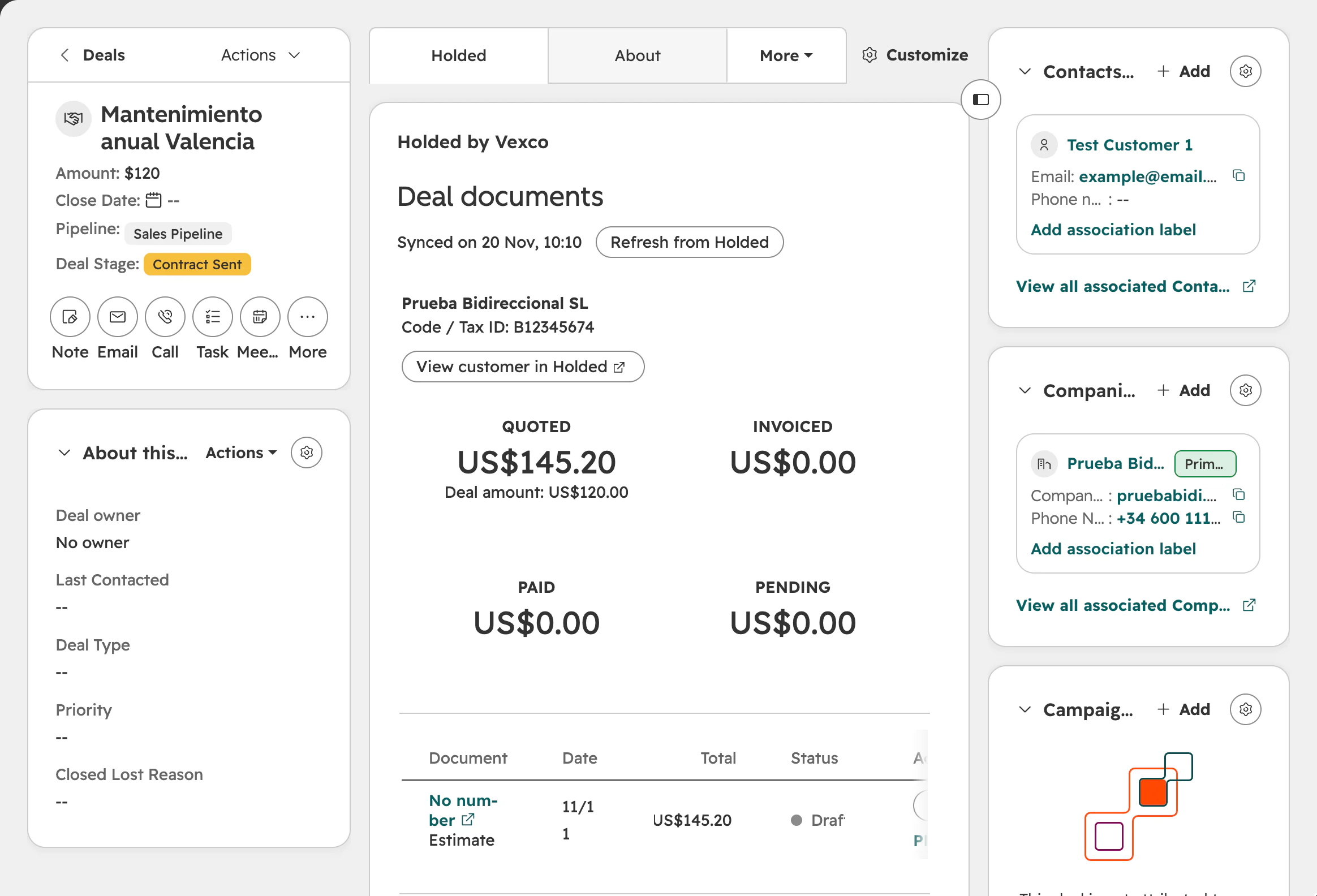
- The “Holded” tab, with the “Holded by Vexco” card.
- Sync status, when it last ran and Refresh from Holded.
- The customer in Holded: name, tax ID and link. If it isn't in Holded yet, it is created with the first document.
- The figures: quoted, invoiced, paid and pending (with the overdue part). If the deal amount doesn't match what was quoted, the card says so.
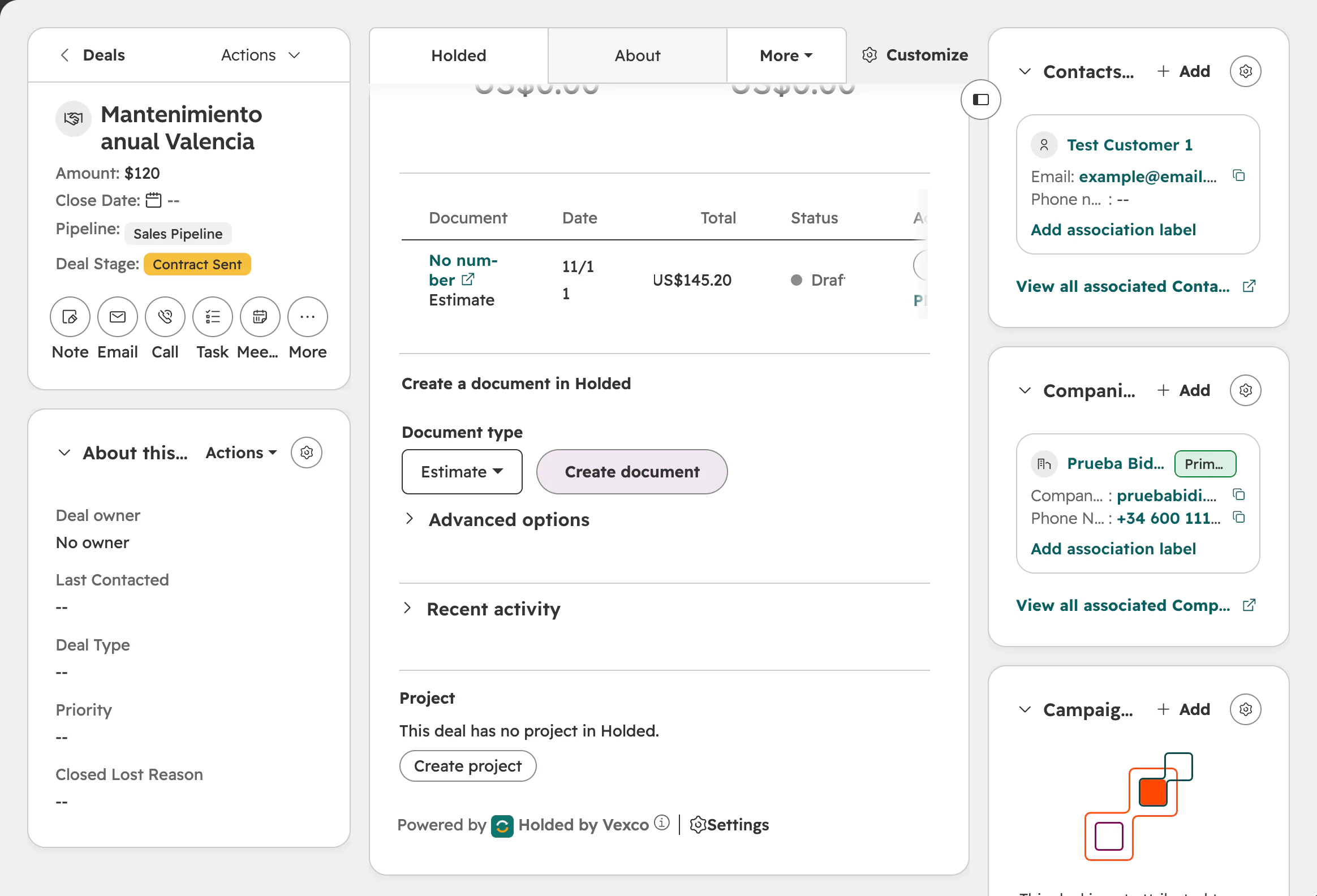
- The deal's documents with date, total, status and days overdue; each with its own actions menu.
- Create document: choose the type (estimate, proforma, sales order, waybill or invoice) and click the button.
- Advanced options: series, date, due date, payment method, channel, warehouse, language, discount, tags, description and notes, and whether to issue or send it on creation.
- Recent activity and the Holded project (hours, cost and margin) or Create project.
In read-only mode, the tab says so at the top (“View only”) and hides everything that writes to Holded.
Automate with workflows: 21 Holded actions
With the automation module, HubSpot workflows gain 21 Holded actions. Add them from Automation › Workflows › “+” › search “Holded”. The dropdowns (series, treasury account, payment method, funnel…) load your real Holded lists, and text fields accept record properties in double curly brackets, such as {{dealname}} or {{company.name}}.
Example: “when a deal is won → create document (invoice) → issue → send by email”. If the module, the connection or the quota is missing, or the app is in read-only mode, the action fails immediately and the workflow history says why. Actions that only read keep working in read-only mode.
| Action | What it does |
|---|---|
| Create document in Holded | Estimate, proforma, sales order, waybill or invoice with the deal's line items, including series, date, due date, notes, tags, discount and sending. |
| Convert Holded document (to invoice or sales order) | Turns an estimate, proforma, sales order or waybill into an invoice or another document, linked to the original. |
| Issue Holded document | Issues a draft after checking the total. An issued invoice can no longer be edited. |
| Send Holded document by email | Sends it to the customer from Holded, with your own subject and message. |
| Create credit note in Holded | A credit note for the last issued invoice, linked to it. |
| Delete Holded draft | Only drafts created by the app; never issued documents or numbered invoices. |
| Get Holded document PDF | The link to the PDF, for example to include it in an email. |
| Get Holded document status | Status, number, amounts, due date and days overdue, to branch the workflow. |
| Record payment in Holded | A fixed amount, the amount in a property or everything pending. Running it again doesn't duplicate the payment. |
| Get customer balance in Holded | Outstanding, overdue, overdue invoices and invoiced in the last 12 months. |
| Create or update contact in Holded | Creates or updates the customer; it searches by tax ID or email first. |
| Update Holded contact (tags, type, terms) | Add or remove tags; change type, group, payment method, due terms or language. |
| Link to an existing Holded contact | By tax ID, email or ID, without creating anything. |
| Create or update product in Holded | Adds it to the catalog; if one with the same SKU already exists, it links to it. |
| Sync record with Holded now | Syncs on the spot, so the following steps see up-to-date data. |
| Create lead in Holded CRM | In the funnel and stage you choose. |
| Move Holded lead to a stage | To another stage of its funnel. |
| Add note to Holded lead | A note on the lead linked to the deal. |
| Create project in Holded | For example, when the deal is won. |
| Create task in Holded project | With a description and due date. |
| Log time in Holded project | Hours and the Holded team member who worked them. |
Check that everything is running smoothly
The app settings (Marketplace icon › Connected apps › Holded by Vexco) have eight tabs: Status, Flows, Settings, Cards, Plan, Connection, Contact and Help. The first, Status, tells you at a glance whether all is well.
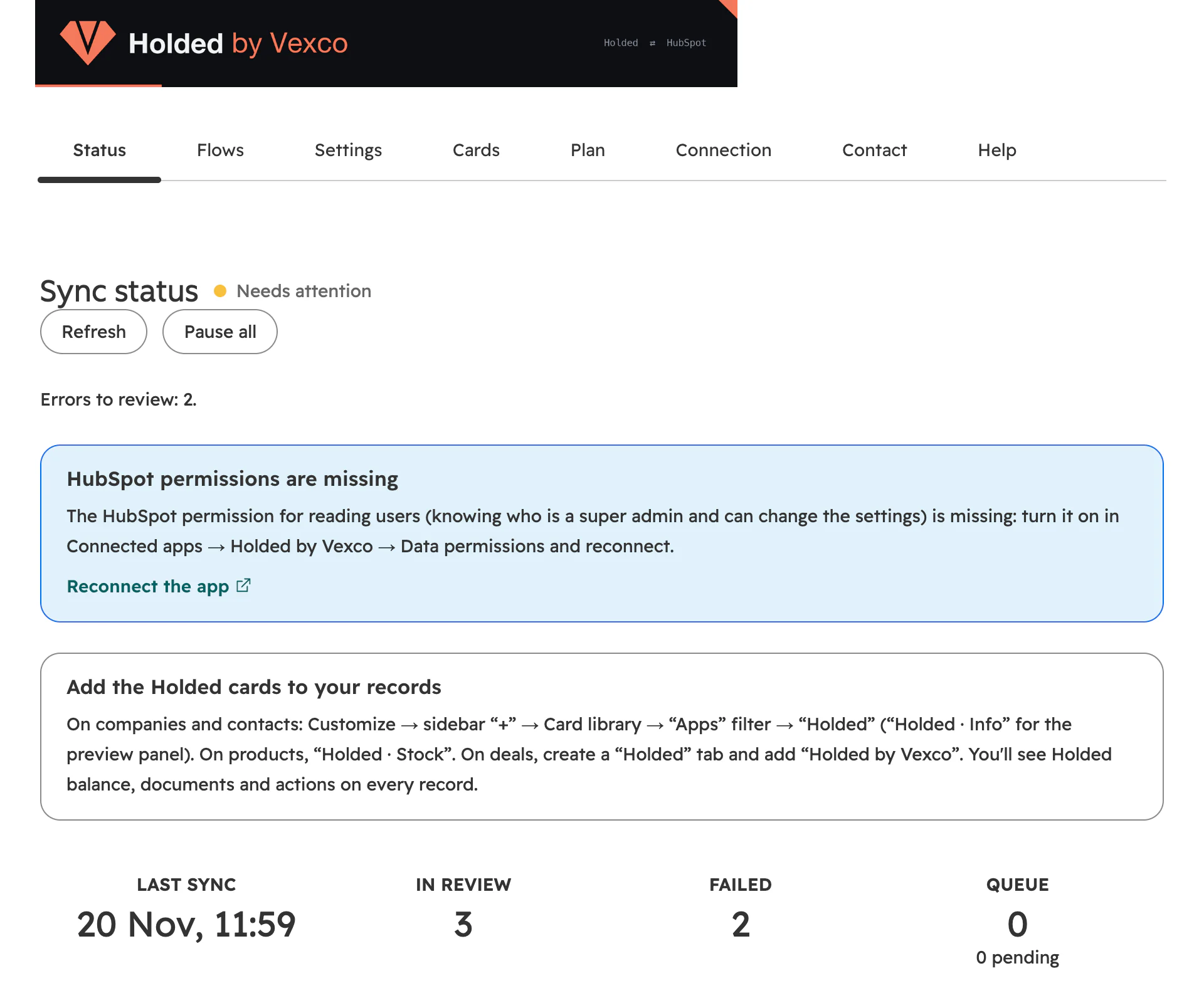
- The tabs of the app settings.
- Sync status, with its indicator: “All good”, “Needs attention” (as here), “Errors” or “Paused”. Refresh reloads the data and Pause all stops syncing in both directions, without losing anything.
- What needs your attention: here, errors to review and a missing HubSpot permission, with the link to fix it.
- A reminder of how to add the cards to your records.
- Last sync, cases in review, failed jobs and the work queue.
Further down are the activity over the last 14 days, the initial loads panel, plan usage, linked records per flow and Resync a flow. If you started in read-only mode, this is where you find Turn on both directions.
The activity log
It records everything the app syncs and also what people do in it: who saved the settings, who created an invoice from the card, what changed.
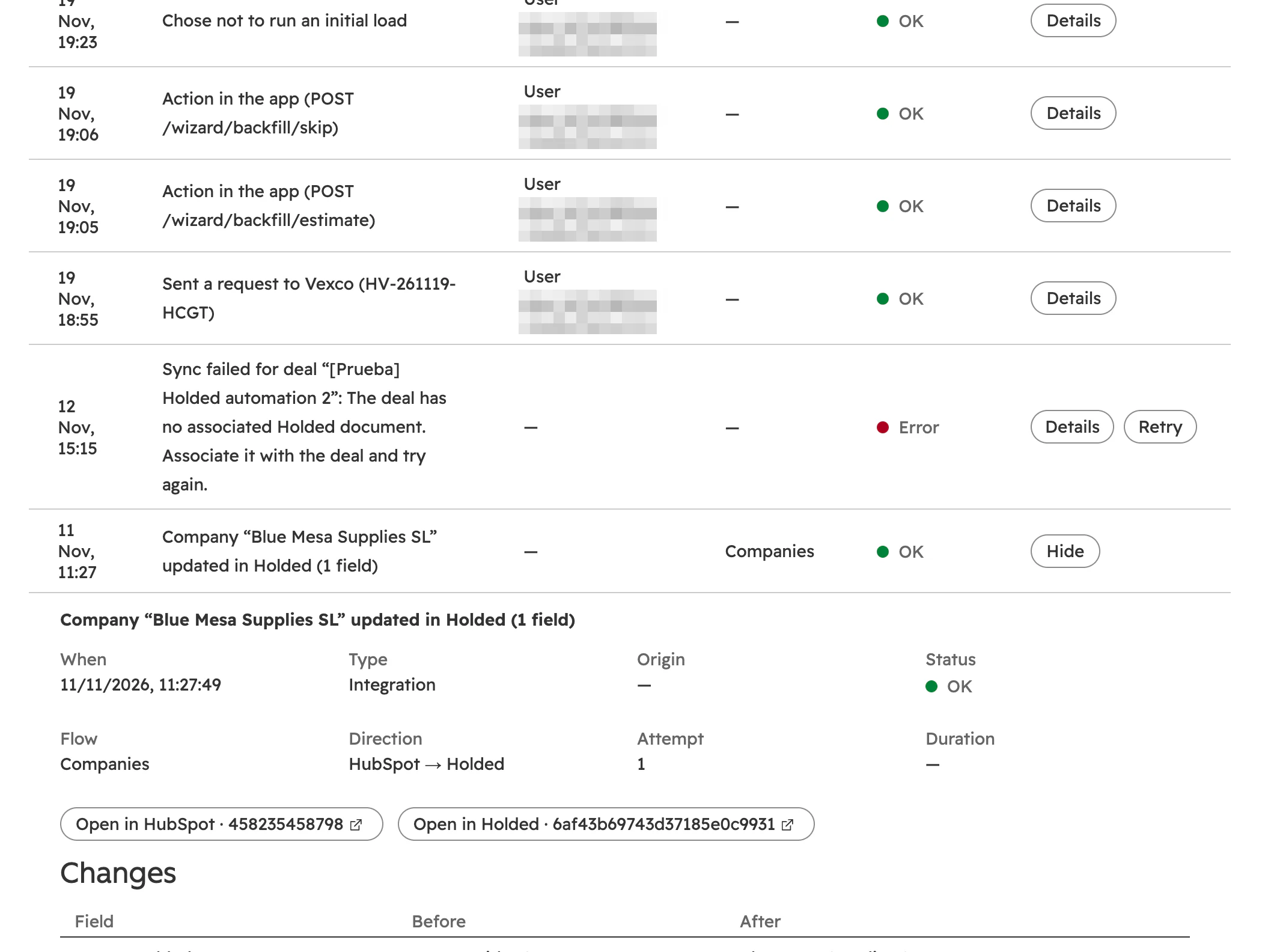
- Origin: who did it. A user, a workflow, a Holded or HubSpot notification, a scheduled task or the initial load.
- An error, with Details and Retry.
- When a row is expanded: when, type, origin, status, flow, direction, attempt and duration.
- Buttons to open the record in HubSpot and in Holded and, below, the field-by-field changes (before and after).
- Filters: type, status, origin, flow, object, direction, dates and text (name, ID, error or email).
- Technical detail: the error with its code and the call that failed, what the app will do next (retry, wait for quota, review inbox), how the record was matched, the fields sent and the Holded quota used.
- Show only this chain displays the action that started it and everything done because of it.
- Copy CSV copies what you see with the current filters (the 500 most recent entries).
- Successful syncs are kept for 30 days, errors for 90 and user actions for 365. Keys are never stored.
Dashboard, failed jobs and email alerts
The app's page also has the Dashboard (health, items to review, failed jobs, plan usage and what happened in the last 24 hours) and Failed (with Retry or Discard). In Settings › General you enter the alert emails and switch on the weekly digest, so nobody needs to check in every day.
Getting help: the Contact tab
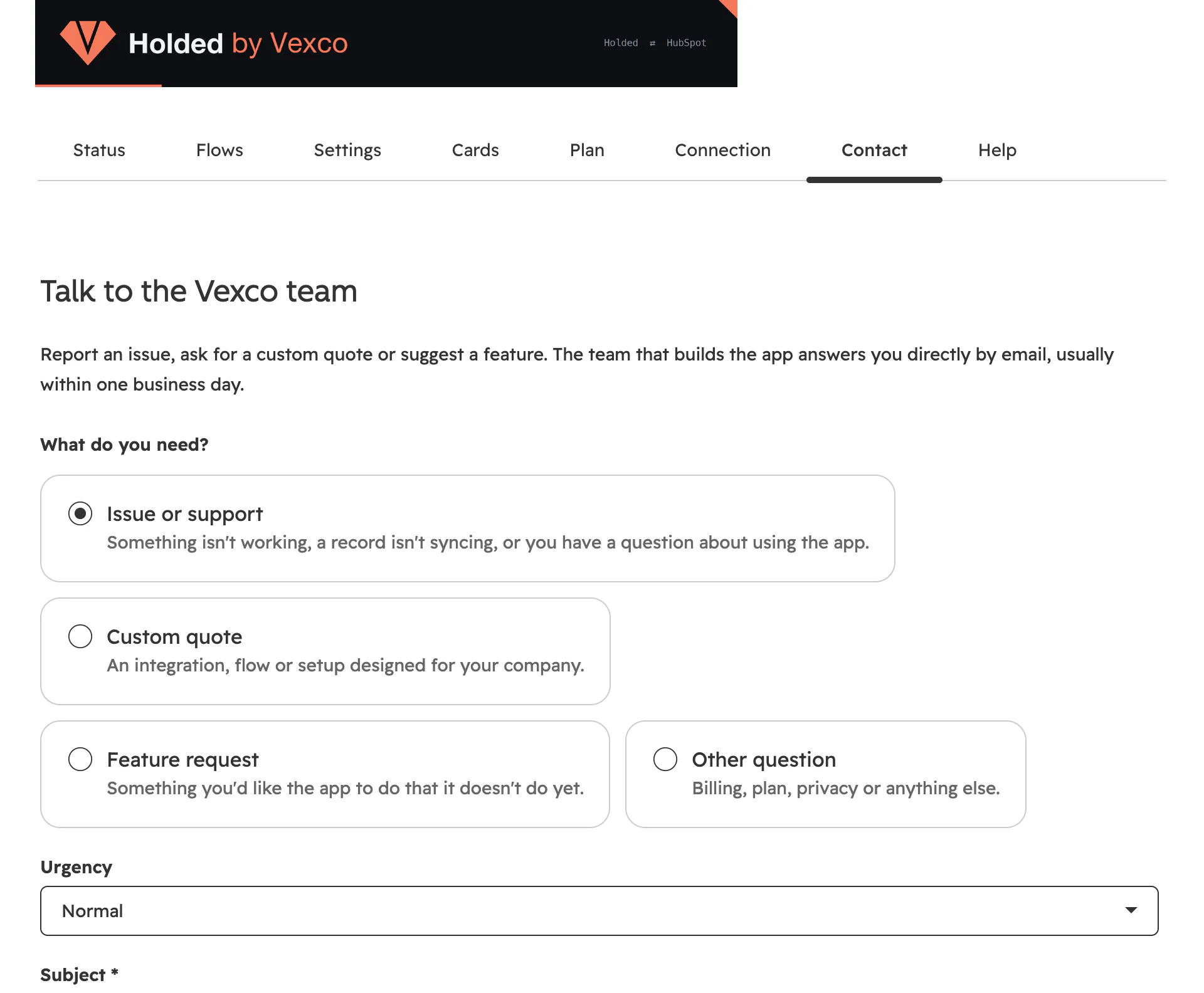
You choose what you need (issue or support, custom quote, feature request or other question) and the urgency. You can attach technical diagnostics (plan, connection, active flows and latest errors; never keys or customer data). The request reaches the Vexco team in a single email and you get the reply by email, in the same thread.
Change how it works
Everything you decided in the wizard can be changed later, flow by flow and value by value.
The 14 flows
| Flow | What it does | Module |
|---|---|---|
| Companies | Holded company customers ↔ HubSpot companies, with their contact persons. | Core |
| Individual contacts | Holded individual customers ↔ HubSpot contacts. | Core |
| Products · Services | Holded catalog → HubSpot products (Holded is the master). | Catalog and inventory |
| Estimates and proformas | Their status comes back to the deal; when one is accepted, the deal moves stage. | Sales |
| Sales orders and waybills | Holded sales orders and waybills → HubSpot orders. | Sales |
| Won deal → document in Holded | When the deal reaches the chosen stage (in any pipeline), creates the document in Holded with its line items. | Sales or Invoicing and payments |
| Invoices and payments | Invoices, credit notes and sales receipts → HubSpot invoices, with their payment status. | Invoicing and payments |
| Holded CRM leads | Leads in Holded funnels ↔ deals. | Holded CRM |
| Events and meetings | Holded calendar events → HubSpot meetings. | Holded CRM |
| Projects and hours | Project in Holded when the deal is won; hours and costs come back to the deal. | Projects and time |
| Suppliers | Holded suppliers → companies of type supplier. | Purchasing and suppliers |
| Purchase orders | Purchase orders → orders associated with the supplier. | Purchasing and suppliers |
| Holded documents → deals (optional) | Holded estimates, proformas, invoices and waybills → deals in the chosen pipeline, with the stage set by their status. | Sales |
| Editor section | What it is for |
|---|---|
| Flow direction | Both ways, HubSpot → Holded or Holded → HubSpot. |
| On conflict | Which side wins if the same field changes on both sides at once. |
| On first link, the source of truth is | Whose data is kept the first time two records that don't match are linked. |
| Conditions | Which records enter the flow: “only customers with a tax ID”, “only the B2B pipeline”. |
| Fields | The ones from step 4 of the wizard, with the same check: with errors, the flow can't be saved. |
| How records are matched | Which fields are used to find pairs (tax ID, email…). |
| If it doesn't exist in the other system · When a record is deleted | Whether to create it; what to do when it is deleted on one side. By default it is only marked on the other side; deleting there only happens if you choose it, and documents are never deleted. |
| Test with a record | What the flow would do with a real record, without writing anything. |
| Version history | Every saved change is a version; you can go back to an earlier one or to the recommended setup. |
Settings, documents and defaults
| Section | What you decide |
|---|---|
| General | The language of the texts the app writes (document notes, errors saved in HubSpot, emails), the alert emails and the weekly digest. |
| Documents | When it's created automatically (at the stages you pick in each pipeline, at any won stage or never), document type (invoice, estimate, proforma, sales order, waybill or none), who gets billed (company or contact), status on creation (draft or issued), sending to the customer, date, due date, description and notes with deal properties, language, tags, what to do with no line items or if a product doesn't exist in Holded, tax on each line, prices with or without VAT, global discount, equivalence surcharge, and IRPF withholding (Spanish personal income tax) with who it applies to. |
| Holded defaults | Numbering series for each document type, treasury account for payments, payment method, sales channel (also the income account for each line), warehouse and funnel. With several Holded companies, each has its own. |
| Rules | Exceptions depending on the deal (see below). |
| Taxes · Stages · Owners | Which Holded tax matches each line item tax, which funnel stage matches each deal stage and which Holded team member is each HubSpot owner. |
| Advanced | Rounding tolerance when matching totals before issuing, and the Holded API quota reserve. |
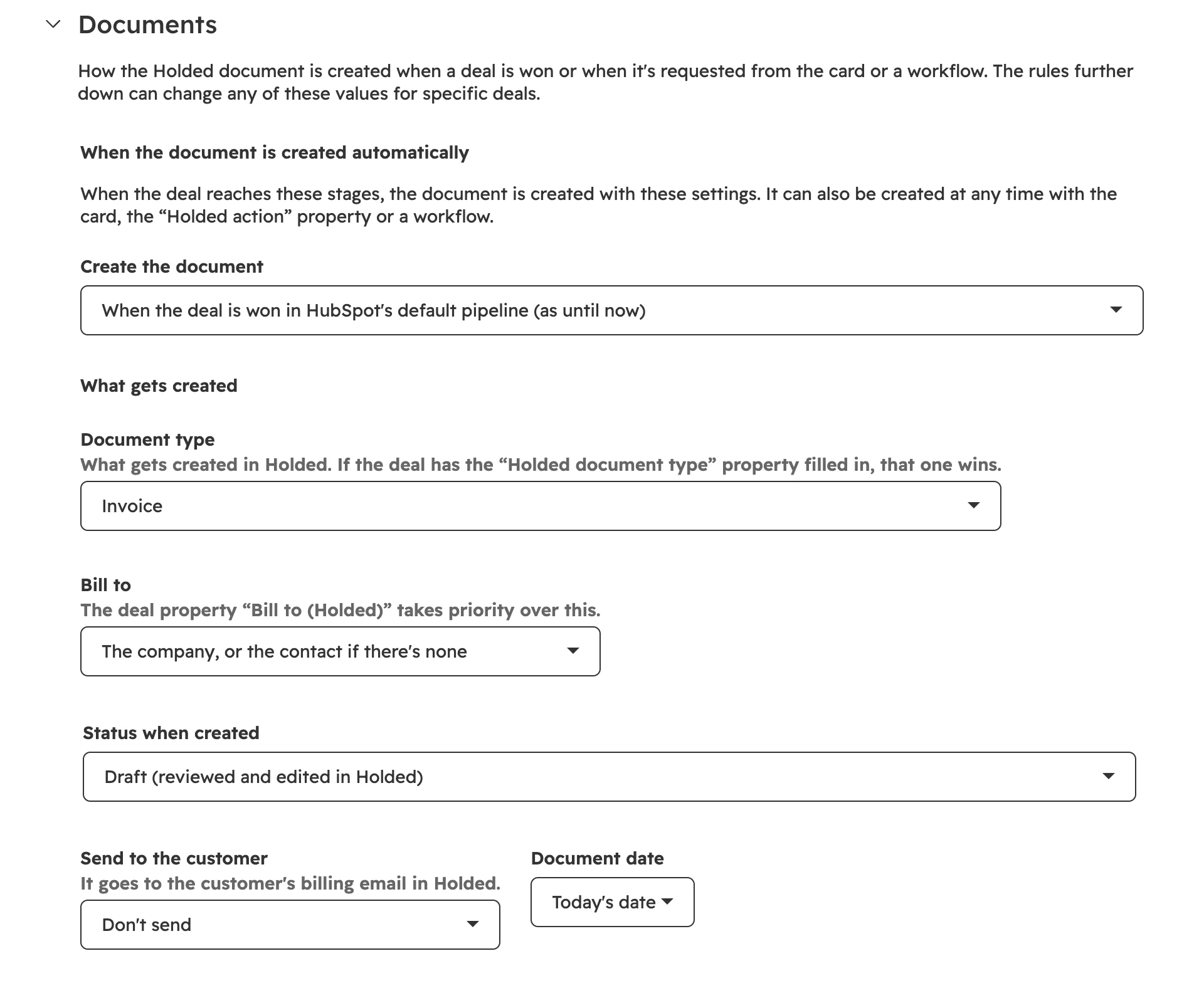
The app never picks “the first one in the list”: if the series or treasury account is missing, the document isn't created and the reason is explained. If you choose to create documents already issued, it warns you that an issued invoice goes to Verifactu and can no longer be edited.
Only HubSpot super admins and the person who installed the app can change the settings, flows, plan or connection. Other users see them read-only; the whole team uses the cards, with the actions you allow.
Rules: exceptions without code
Rules change those values for specific deals: a different series for the online store, a different treasury account when the customer pays cash, or issuing straight away when the amount is small.
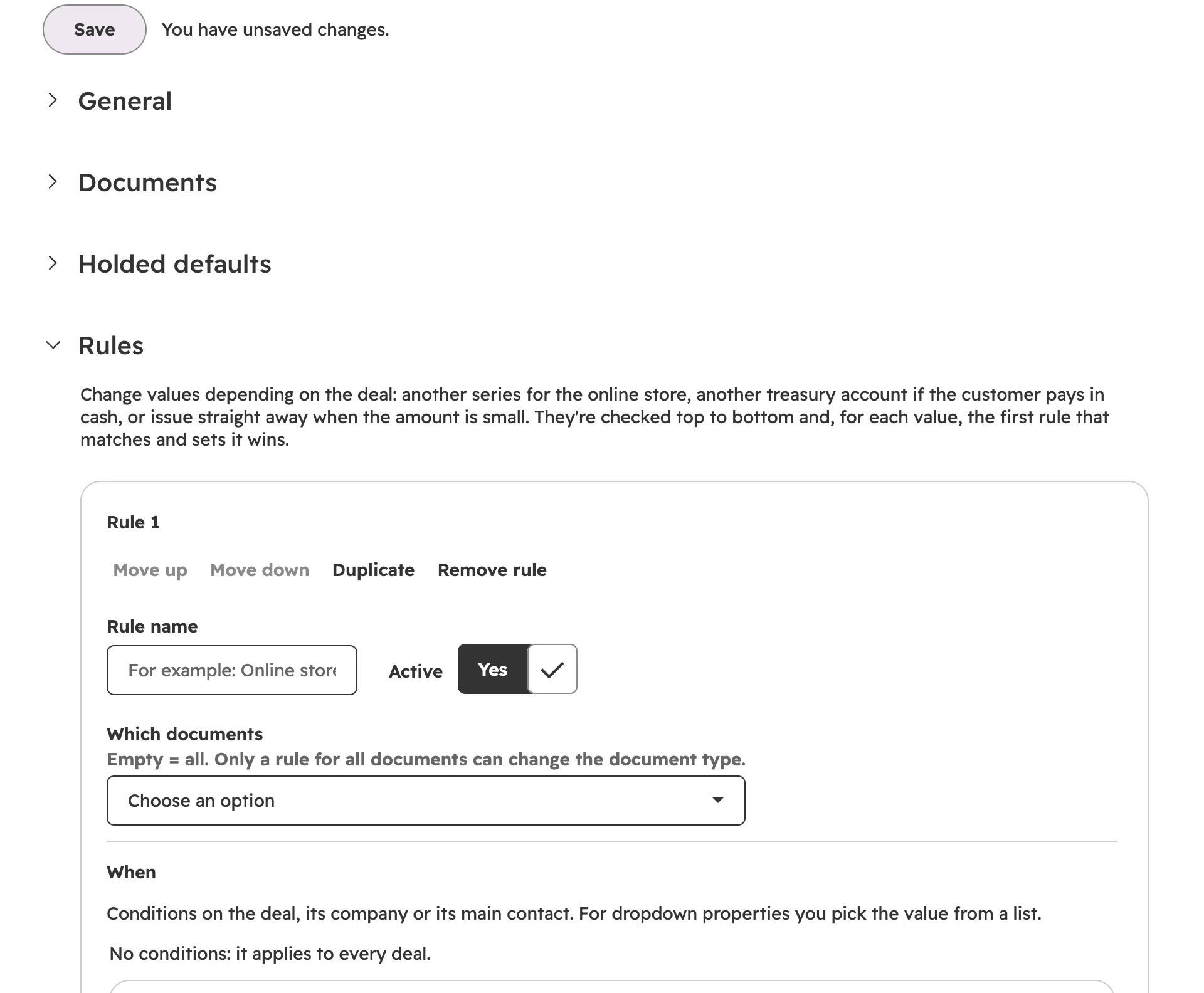
- Rule name and whether it is active; above, Move up, Move down, Duplicate and Remove rule.
- Which documents it applies to (empty means all).
- When: conditions on the deal, its company or its primary contact, combined with “ALL must match”, “ANY must match” or “NOT”.
- Then: the values it changes (series, treasury account, issue, send, due date, notes…).
| Example | When | Then |
|---|---|---|
| Online store | Deal pipeline is “Online store” | Invoice series “TO” and treasury account “Stripe” |
| Cash payment | Company payment method is “Cash” | Treasury account “Cash box” |
| Retailers | Company customer type is “Retailer” | Equivalence surcharge: add the surcharge to each VAT rate |
| Individuals | Deal pipeline is “Individuals” | Bill to: contact |
Rules are checked from top to bottom: for each value, the first rule that matches and defines it wins. Test with a deal shows which values that deal's document would get and where each one comes from, using what is on screen even if it isn't saved yet, and without creating anything.
What the cards show
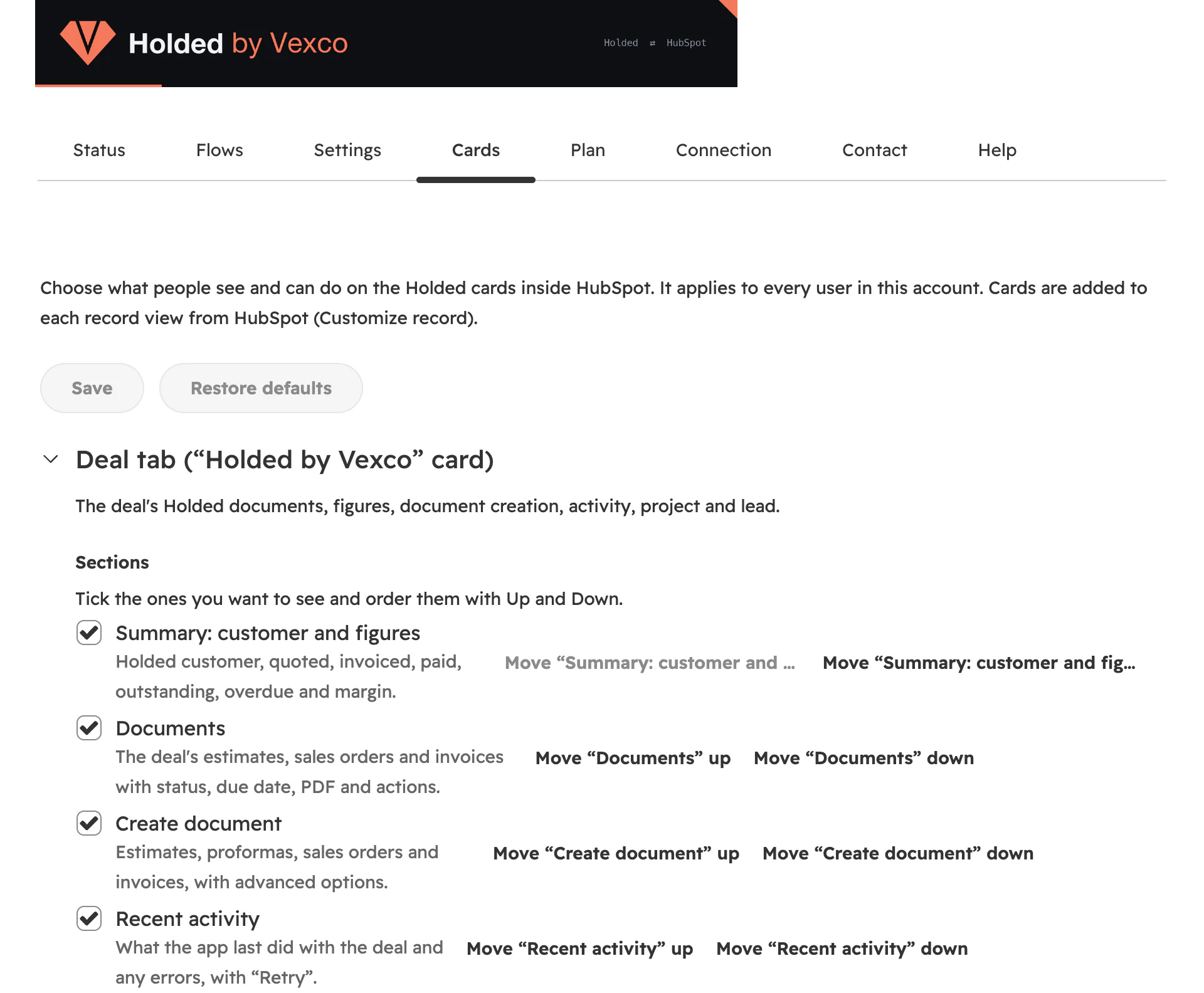
- Save and Restore defaults.
- Each card expands: the deal tab, company and contact, and product.
- Which sections are shown…
- …and in which order (Up and Down).
For each card you also choose the allowed actions (create invoices, issue, send, record payments, delete drafts…). An unticked action disappears from the card, and the server rejects it even if someone tries.
Connection, pausing and uninstalling
| To… | Where | What happens |
|---|---|---|
| Change the Holded key | Connection › Change key | The old key stops being used as soon as the new one is validated. |
| Connect another Holded company | Connection › Add another Holded company | It counts towards your plan. |
| Stop everything for a while | Status › Pause all | Nothing is lost. When you resume, it carries on where it stopped. |
| Stop using a Holded company | Connection › Disconnect | Everything stays. You can delete that company's links and history. |
| Cut access from Holded | In Holded, delete the key under Developers | The app stops reading from and writing to Holded. |
| Delete everything and uninstall | Connection › Delete data and uninstall | Deletes what the app stores. Deletes nothing in Holded or in your HubSpot records. |
HubSpot objects and properties
| HubSpot object | What the app puts there |
|---|---|
| Companies | Holded company customers and suppliers, with tax ID, masked IBAN (country and last 4 digits), payment method, balance and overdue amount. |
| Contacts | Individual customers and the contact persons of companies. |
| Deals | The Holded documents for each sale, invoiced and paid amounts, leads and projects; with the optional flow, documents made in Holded too. |
| Products | Holded products and services, with stock, barcode and tax. |
| Invoices | Invoices, credit notes and sales receipts issued in Holded, with the PDF and payment. |
| Orders | Sales orders, waybills and purchase orders. |
| Meetings | Holded calendar events, associated with the company and the deal. |
The app's properties sit in the Holded group of each object and work like any other: in filters, lists, reports and workflows. For example, a list of “companies with an overdue amount greater than 0” for the sales team. Properties the app calculates (balances, sync status) shouldn't be edited; on deals, “Holded action”, “Document type to create in Holded” and “Bill to (Holded)” are meant to be changed by hand, and on companies and contacts, “Holded action”.
Modules, bundles and payment
You pay only for what you use, monthly or yearly (yearly billing is 10 monthly payments: 2 months free): a required core plus optional modules, or a bundle, which works out cheaper. With Sales (the Commercial bundle) you create estimates, proformas, sales orders and waybills from the deal; Invoicing and payments adds invoices, credit notes, sales receipts and payments. The first 14 days are free, with everything on and no card. There is no lock-in.
Or build your own, module by module
The core is required; add whatever else you use. While you choose in the app, it tells you if a bundle costs less than the sum.
| Module | Price per month |
|---|---|
| CorerequiredTwo-way contacts and companies, duplicate-free matching, dashboard and activity log. | €15 |
| Catalog and inventoryProducts, services, variants, bundles and stock per warehouse. | €9 |
| SalesEstimates, proformas, sales orders and waybills from deals (create, issue and send), with their status synced back. | €12 |
| Invoicing and paymentsInvoices from deals; invoices, credit notes and receipts in HubSpot; two-way payments; balance and overdue amounts per company. | €19 |
| Holded CRMLeads, funnels and stages ↔ deals; lead notes and calendar events as meetings. | €9 |
| Projects and timeProjects from won deals; hours, cost and margin in HubSpot. | €9 |
| Purchasing and suppliersSuppliers, purchase orders and purchases in HubSpot. | €7 |
| Advanced automationThe 21 Holded actions for HubSpot workflows (workflows need HubSpot Professional or Enterprise). | €12 |
Document volume
The count covers documents synced in the month (invoices, estimates, orders…), including those created from HubSpot. With a bundle, the included volume is the minimum: you can raise it by paying only the difference.
| Monthly volume | Price per month |
|---|---|
| Up to 500 documents a month | Included |
| Up to 2,000 documents a month | +€12 |
| Up to 10,000 documents a month | +€39 |
| More than 10,000 documents | Custom quote |
Each additional Holded company: +€12/month.
| Situation | What the app does |
|---|---|
| The trial ends without payment | Sync is paused. Nothing is deleted and, once you choose and pay for a plan, it picks up where it left off. |
| You exceed your plan's volume one month | 7 grace days; after that, read-only until you raise the volume. |
| You want more Holded companies than your plan allows | It won't let you connect them until you upgrade the plan (up to 3 during the trial). |
| You change plan | Whenever you like. The flows of a module you remove are paused (nothing is deleted) and come back when you add it again. |
| The card payment fails | It warns you (payment due) and keeps working for a few days; if it isn't resolved, sync is paused. |
| You cancel | Sync stops. Your data in HubSpot and Holded stays. |
Nothing is ever lost and access to your data is never blocked: the worst that can happen is that sync stops until you sort it out.
Frequently asked questions
How long does setup take?
An afternoon is typical. The wizard has 7 steps, saves each one and lets you carry on another day; reviewing the fields and planning the initial load take the most time.
Is anything copied before I activate?
No. Until step 7 the app only reads, to validate the key, analyse duplicates and run the dry run. Nothing is written to Holded or HubSpot until you activate.
Can I change the fields later?
Yes. Each flow has its own editor with fields, direction, conditions and which side wins in a conflict, and keeps a version history so you can roll back.
What happens if the app can't create an invoice?
It doesn't improvise: the document isn't created, the error is explained in the activity log and on the deal, and you can retry once it is fixed. If the deal already has an invoice created by the app, it doesn't create another: it updates the draft or, once issued, points you to a credit note.