 Holded by Vexco
Setup guide for Holded by Vexco
Holded by Vexco syncs Holded and HubSpot both ways: companies and contacts, products and stock, estimates, orders, invoices and payments, opportunities and projects. This guide covers installing, configuring, using, disconnecting and uninstalling the app. The app interface is available in Spanish and English; screenshots are in Spanish.
Requirements
- A HubSpot account (any edition) and a user allowed to install apps (super admin).
- A Holded account with API access (Settings → Developers).
- To see invoices and orders as HubSpot objects, your HubSpot account needs the Invoices and Orders objects (these scopes are optional; without them the app stores the data on the deal).
1. Install the app
- In the HubSpot Marketplace, open Holded by Vexco and click Install (or use this install link).
- Choose the HubSpot account to install it in.
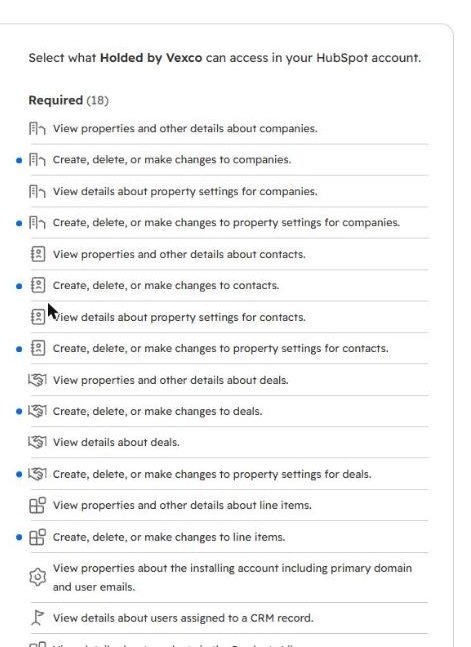
- Review the requested permissions and click Connect app. Invoice and order permissions are optional.
- HubSpot takes you to the app settings, where the setup wizard starts.
2. Connect Holded
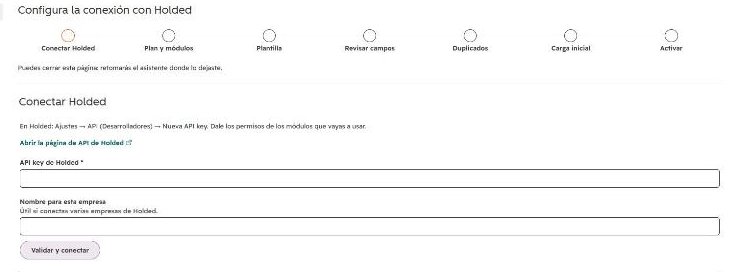
- In Holded, go to Settings → Developers → New API key. Grant the permissions for the modules you'll use (the wizard tells you which) and copy the key: Holded only shows it once.
- In the app wizard, paste it into Holded API key, give it a name (useful with several Holded companies) and click Validate and connect. The app checks the key and its permissions instantly.
3. Configure
The wizard saves every step, so you can close it and continue later.
- Plan and modules. Everything is on during the 14-day trial; choose what you need afterwards.
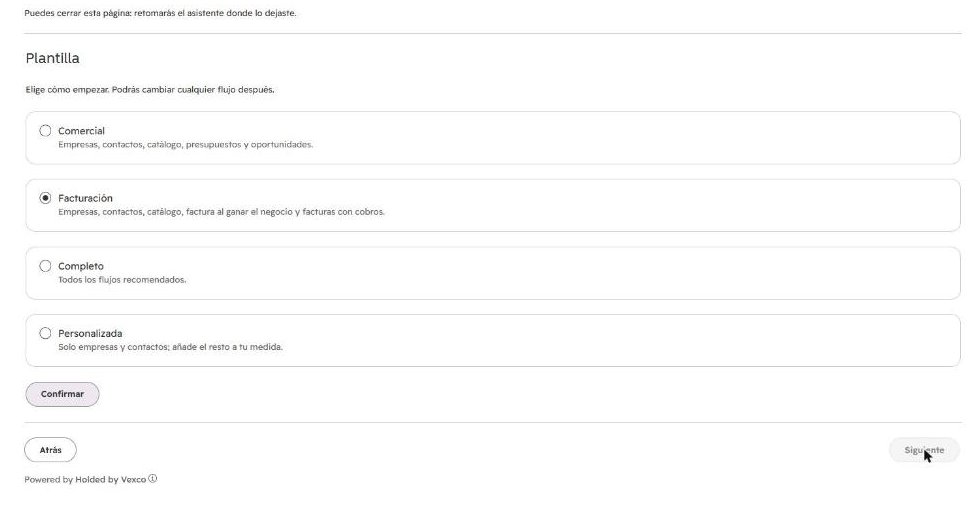
- Template. Sales, Invoicing, Complete or Custom. It turns on the recommended flows; you can change any of them later.
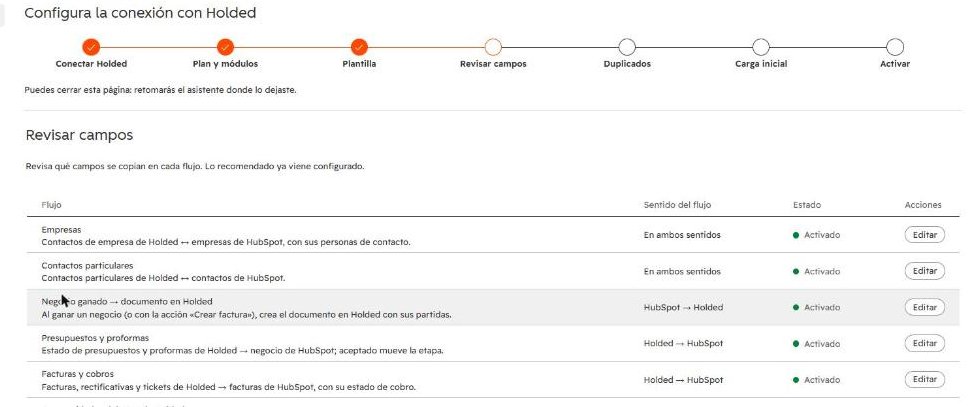
- Review fields. For each flow you see which fields are copied, in which direction (Holded → HubSpot, HubSpot → Holded or both) and when. Click Edit to change mappings or conditions.
- Duplicates. Click Analyze duplicates: the app counts which records will be linked (by tax ID or email), which will be created and which need your decision. It writes nothing.
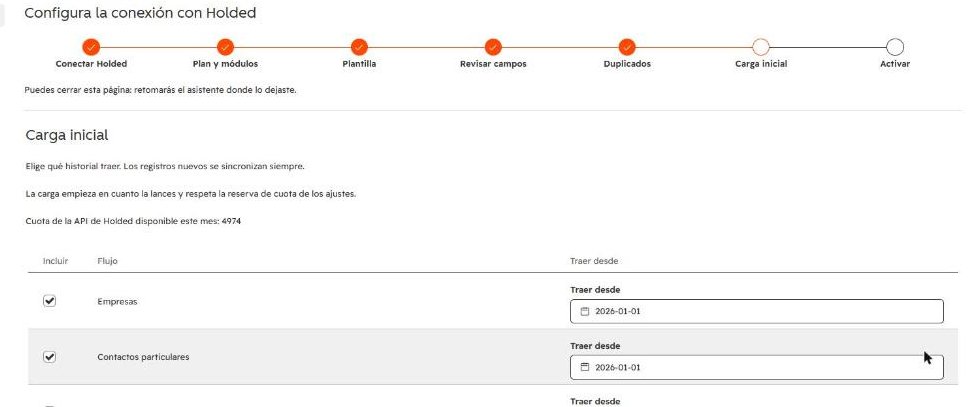
- Initial load. Choose which history to bring in and from which date. New records always sync.
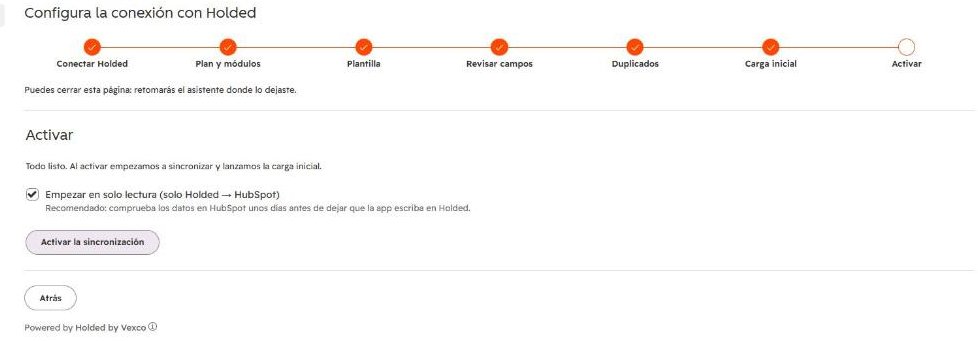
- Activate. We recommend starting read-only (Holded → HubSpot only) for a few days, then enabling both directions. Nothing syncs until you click Activate.
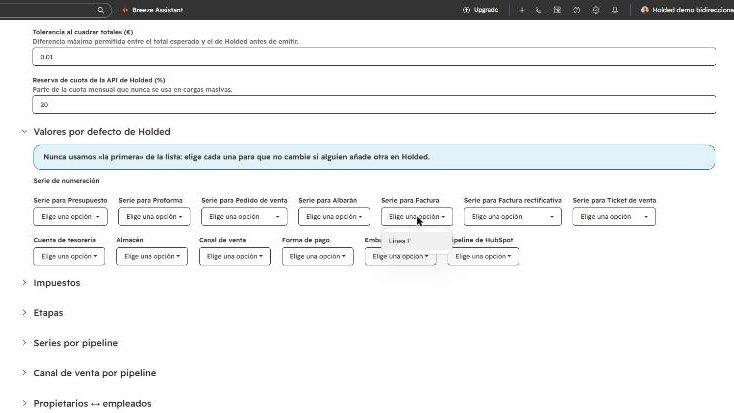
Then, in Settings, choose your Holded defaults: the numbering series for each document type, the treasury account, warehouse and sales channel. The app never picks «the first one in the list» for you, and it won't issue invoices until a series is chosen.
4. Use the app
Automatic
- Changes in HubSpot and Holded are copied within seconds, in the directions you configured.
- Holded CRM opportunities and projects (which don't send notifications) are checked every 5 minutes.
- A nightly pass catches any missed notification.
- Invoices issued in Holded appear in HubSpot linked to their company and deal, with payment status and PDF. Payments update the deal and company balance.
Manual
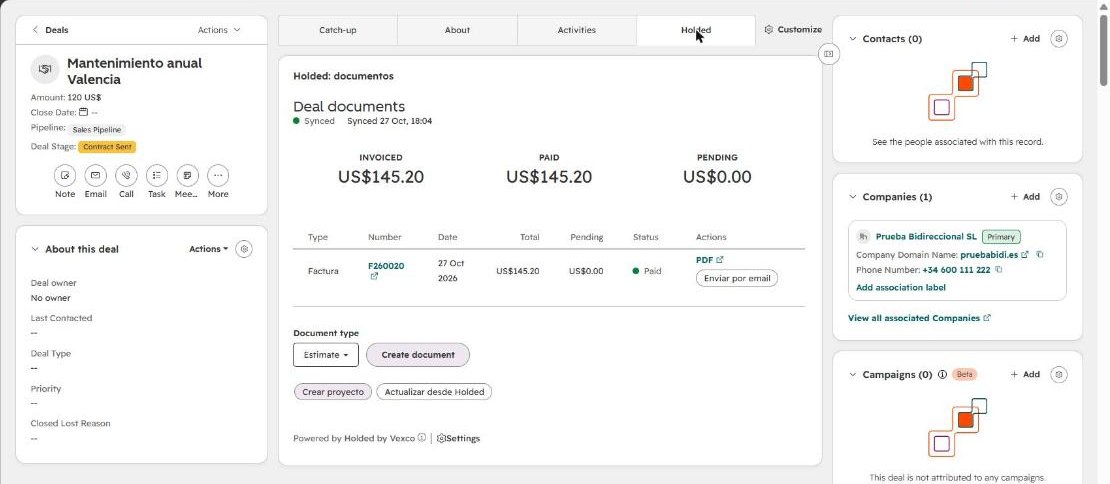
- On a deal, the Holded action property (or the buttons in the Holded tab) creates an estimate, proforma, order or invoice from the deal's line items, converts it to an invoice, issues it or sends it by email.
- In workflows you get actions to create and issue documents, record payments, create projects and log time.
- Status shows sync health, the queue, items to review and plan usage. You can pause everything in one click.
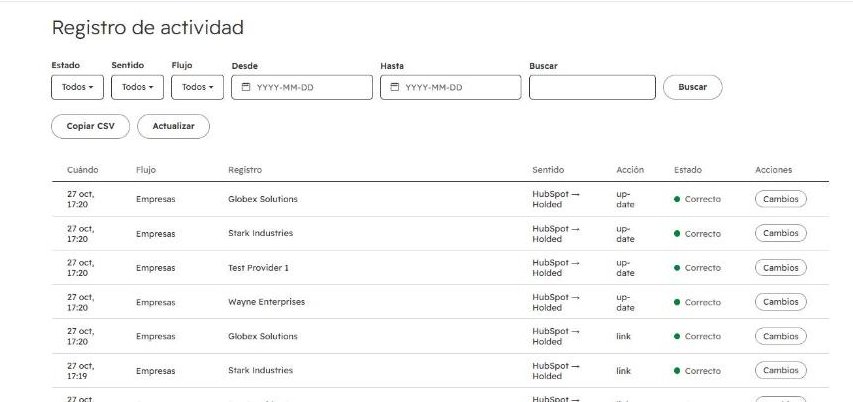
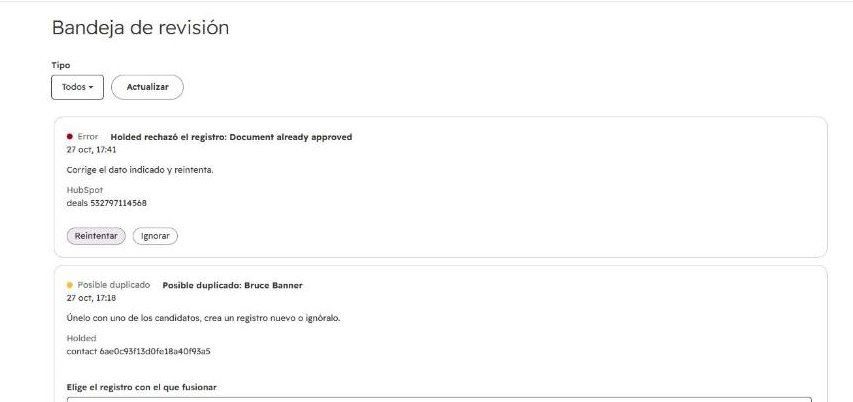
- The activity log shows every change with before and after values; the review inbox only asks you when in doubt (for example, the same email with a different tax ID), and Failed lets you retry.
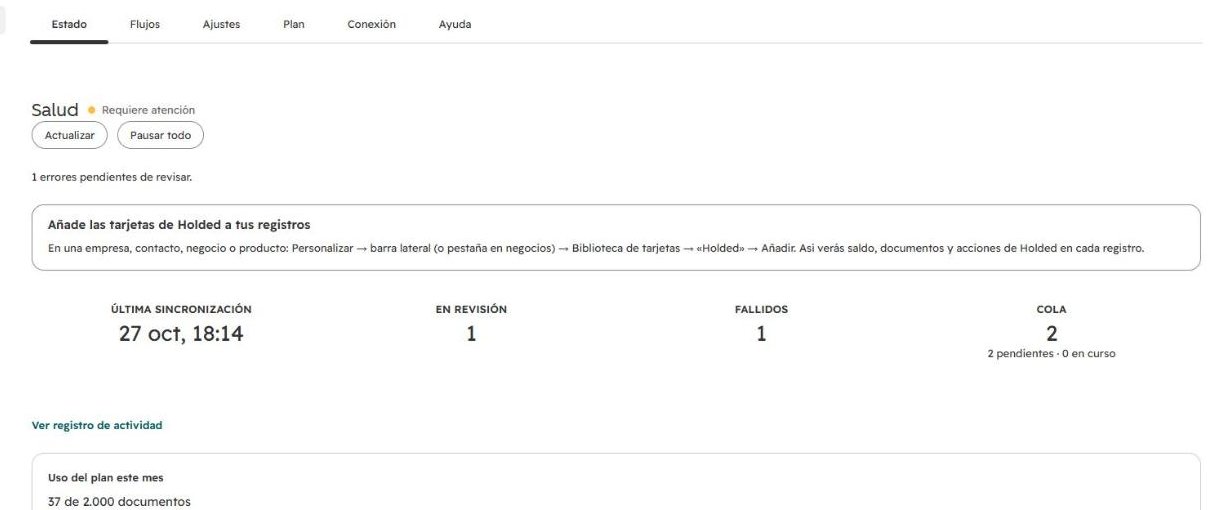
5. Add the cards to your records
HubSpot doesn't show an app's cards until you add them to the record view:
- Open a company, contact or product and click Customize.
- Edit the view, click + in the sidebar → Card library → filter by Apps → Holded → Add. Save.
- On deals, create a «Holded» tab and add the Holded: documentos card.
6. Disconnect
- Pause: Status → Pause all. Syncing stops in both directions until you resume.
- Disconnect a Holded company: Connection → Disconnect. You can also choose to delete the data the app keeps for that company (links, history and settings).
- To revoke access from Holded, delete the API key in Settings → Developers.
What happens to your data: syncing stops in both directions. Everything already in HubSpot and Holded stays as it is; the app deletes nothing in either.
7. Uninstall
- In HubSpot, go to Settings → Integrations → Connected apps.
- On Holded by Vexco, click Actions → Uninstall and confirm (HubSpot guide).
What happens to your data: syncing stops immediately. Records, properties and documents in HubSpot and Holded stay as they are. The app stops using your credentials and permanently deletes what it stores for your account (encrypted keys, links and history) after 30 days; if you want it sooner, use Connection → «Delete all app data» or email us.
Synced data
| HubSpot | Holded | Direction |
|---|---|---|
| Companies | Company contacts (customers) and suppliers | Both (suppliers: Holded → HubSpot) |
| Contacts | Individual contacts and contact persons | Both |
| Deals | Estimates, proformas, orders, invoices; CRM opportunities; projects | Both |
| Products and line items | Products, services, variants and stock | Both (stock: Holded → HubSpot) |
| Invoices | Invoices, credit notes, receipts and payments | Holded → HubSpot (payments: both) |
| Orders | Sales orders, delivery notes and purchase orders | Holded → HubSpot |
| Owners | Employees (assignment) | Read-only in HubSpot |
Questions? Email javier@vexcosolutions.com (Monday to Friday, 9:00–18:00 Madrid time).